

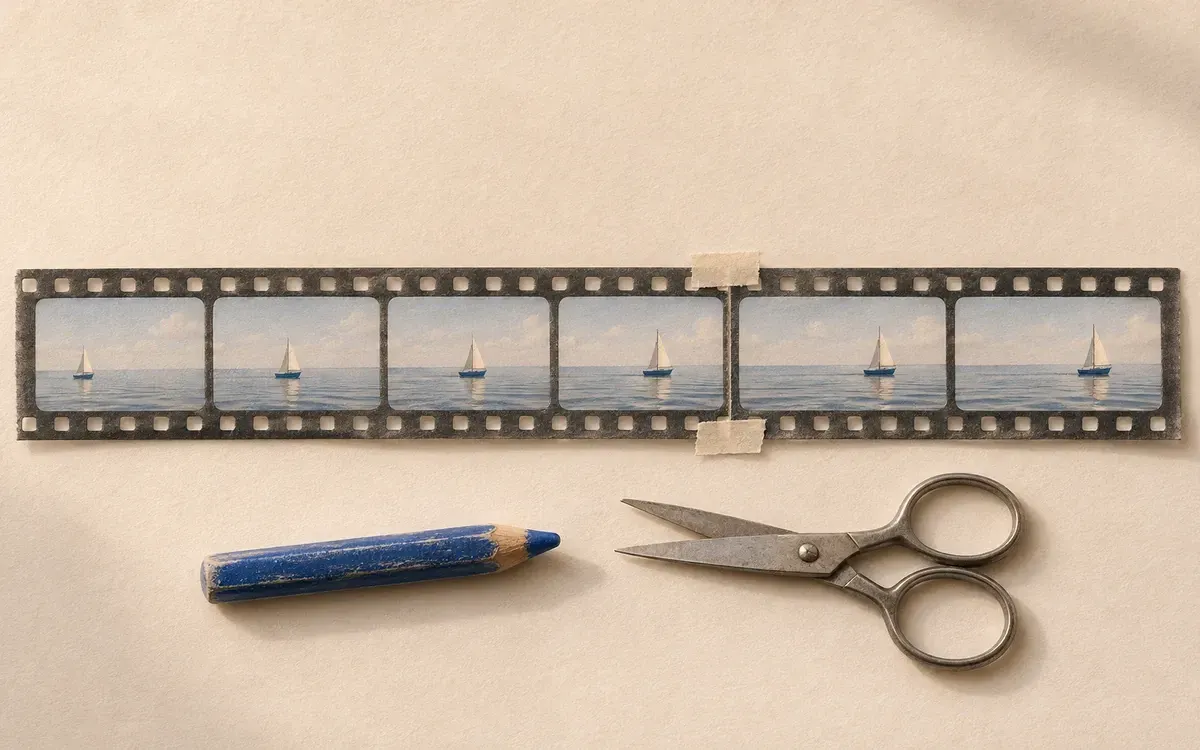
Use a video model's dedicated Extend mode to continue the action after your clip ends, then inspect the join before making the shot longer again. Keep the original file. Runway Seedance 2.5 returns only the newly generated footage, so you'll need to assemble the two clips.
I'd extend an already usable shot when the action needs a little more time to finish. If the ending already contains a changing face, bent product or unwanted cut, fix the source or choose an earlier clean endpoint first. More footage won't make that damaged boundary acceptable.
Decide what needs more time
Extension generates a continuation of the scene. A freeze frame holds one image, a loop repeats existing footage, and slow motion changes playback timing. Choose the simplest edit that serves the shot: a still end card can hold a caption without generating more motion. Use extension when the moving subject or camera needs to carry on.
Adding time and widening the picture are separate jobs. In Seedance 2.5 Extend, the output takes its aspect ratio from the source video. You can't use that mode's controls to turn a horizontal shot into a wider or taller composition.
Watch the source through its ending. Identify the subject's direction, the camera's direction and the action that should happen next. Keep an untouched copy, then trim a working copy if its final moments contain a cut or an unacceptable defect. Choose a boundary where the movement you want to continue is readable.
Load the clip into Extend mode
The concrete route here uses Seedance 2.5 in Runway's web Tools view. Select Video, choose Seedance 2.5 from the model selector, then select Extend. The model's documented creation modes distinguish Extend, which adds footage, from Edit, which changes the existing video and follows its length.

Drop the working clip into the video area, or choose it from your assets. Confirm that the loaded clip is the version with the accepted ending. Only upload footage you're allowed to send to the service; get approval before supplying confidential material or another person's likeness.
Check the selected model's current input requirements and the charge shown in your account before generating. If Generate is greyed out, Runway says to hover over the button for the required input adjustments. Correct the stated problem rather than moving the video into a different mode and assuming it will extend there.
Describe the next beat and its direction
Seedance 2.5 can generate footage forwards from the end or backwards into the beginning. Its extension instructions say to name the direction in the prompt and describe the new footage. For an ending that needs more time, ask for a forward continuation.
Suppose the source shows a toy train rolling steadily to the right across a table. This constructed prompt asks for the same movement to continue:
Extend forwards from the end of the source video.
The toy train continues rolling to the right at the same
steady pace. The camera remains fixed. The table and
background stay in place, with the same soft window light.
Adapt the action to what the source shows. A train already slowing to a stop needs a different continuation from one moving steadily. I'd keep this attempt to the next visible action, because adding a new location, camera move and lighting change makes the join harder to judge.
For a lead-in, name the opposite direction and describe the action before the source begins. The generated lead-in belongs before the original clip when you assemble the result. Don't reverse the source video to simulate that operation.
Set the added time in the duration control. The documented choices are Auto or 4–30 seconds. Select enough time for the requested action, then trim to the edit's exact length later. Auto initially charges for the longest duration and refunds unused credits; it doesn't mean an unmetered generation.
If you use Draft in Tools, budget for it. Runway describes a 480p preview charged at the same rate as standard 480p generation. Enhance Draft produces a separately charged 1080p asset and must be used within seven days. A preview and its enhancement are separate costs.
Inspect the join, then assemble the files
Generate the extension and play it in sequence with the source. In Seedance 2.5, the selected duration applies to the new segment alone: the original stays unchanged and the output contains only new footage. A short returned clip therefore isn't necessarily a truncated original.
Place a forward extension after the original, or a backward extension before it, in Studio or your video editor. Start with a straight join so you can see whether the continuation works. Scrub across the boundary, then watch the whole assembled shot at normal speed and at the crop you intend to use.
- Check the subject's position, direction and speed across the join. A matching pose can still jump when movement restarts at a different pace.
- Follow faces, hands, product edges and readable lettering through the extension. Reject changes that matter to the shot even if the first new frame matches.
- Watch the camera path and fixed background details. Look for a sudden zoom, viewpoint change or unintended cut.
- Listen across the join. Check for a gap, repeated sound, changed ambience or a generated voice that no longer matches the intended audio.
For simple file assembly, Runway's Stitch Videos app combines clips in the order you add them. Open it from Apps, add the source and extension in the intended order, then select Stitch. Use the left handle to reorder a misplaced clip. Use an editor when you need trimming or sound adjustments; stitching alone doesn't repair changed geometry or motion.
Change the part that breaks continuity
| What breaks | What to check | Next attempt |
|---|---|---|
| The subject jumps or suddenly accelerates. | Compare its movement just before and after the join. | State the continuing direction and pace. Remove a new action that competes with that movement. |
| The extension starts with a different view. | Look for a new camera angle or location in the prompt. | Keep the same shot and ask only for the next action. |
| A face or object changes shape. | Inspect the source boundary and the first point where the change appears. | Choose a clean boundary or regenerate the faulty segment. Keep a visibly damaged result out of the next extension. |
| The picture works but the sound jumps. | Listen to both clips separately and together. | Adjust or replace the audio in the edit without regenerating an accepted picture solely to fix the soundtrack. |
| The requested ending arrives too early or late. | Compare the generated action with the selected duration. | Trim an acceptable continuation; simplify an unfinished action or allow it more time. |
These are revision choices to check against the next output. Keep the accepted source and change one instruction at a time so you can see what changed. If another attempt still alters essential identity or product details, I'd use a deliberate cut to another approved shot rather than chain the faulty extension.
Use a last-frame continuation when Extend isn't available
A model that accepts a starting image can create another clip from the previous clip's final frame. Runway's image-to-video guide describes that route: move the playback scrubber to the end, select Use, then Use current frame. Supply a motion prompt for the next segment, generate it and combine the clips in an editor, removing the redundant shared frame when adjusting timing.
This route supplies a still image rather than the preceding movement. The image carries appearance and composition; the motion prompt has to describe how the action continues. Inspect the extracted image before reusing it: Runway warns that blurry faces or hands can become more pronounced during animation. A matching boundary image doesn't establish matching speed through the join.
Keep that fallback distinct from extending a video input, and check whether your particular service returns the new segment alone or an assembled file. If the continuation needs a different action or camera move, use the one-shot planning guide to define that next shot before generating.
Export the accepted assembly, open the exported file and watch the join again with sound. Keep the original, extension, prompt and chosen settings together. Only extend that result again after the entire current shot passes your checks; otherwise, return to the last accepted boundary. The surrounding video guides cover the other stages of the edit.