


ChatGPT Plus doesn't pay for ordinary OpenAI API calls or include an API credit grant. If a tool asks for an OpenAI API key, check the balance of the API organization that key belongs to before paying for another ChatGPT plan. Supported tools can also offer a separate way to use your ChatGPT allowance, and eligible Pro and Business subscribers can claim API credits, so the connection method matters.
Identify how the tool connects
Start with the tool's connection screen. An API key, a ChatGPT sign-in, and credits bought from an app provider can lead to different bills. The name of the model doesn't identify who charges you.
| Connection | What to check |
|---|---|
| ChatGPT app or website | Your ChatGPT plan, its usage allowance, and any separately enabled credit purchases. |
| Sign in with ChatGPT | Whether you approved plan usage as well as sign-in, and the app's limit in ChatGPT. |
| Your OpenAI API key | The receiving API organization and project, their credit balance, and applicable API limits. |
| An app provider's own credits | That provider's terms and invoice. A ChatGPT subscription alone doesn't establish what the app includes. |
For Plus, OpenAI explicitly separates API usage from the subscription. Using the same email for both products doesn't combine their balances. A Plus receipt isn't an API balance. Buying API credits doesn't upgrade your ChatGPT plan either.
The sign-in route deserves a closer look. In participating apps and sites, eligible Go, Plus, Pro, and Business users can separately approve use of their ChatGPT plan. Those requests use the applicable ChatGPT Work and Codex allowance or eligible ChatGPT credits. You don't create or share an API key for that connection. Signing in successfully can establish identity without granting permission to use the plan.
For a personal Go, Plus, or Pro plan, open Settings → Usage → App limits → Manage limits to review an app's weekly limit. That limit caps the share of your overall weekly usage the app can consume; it doesn't create another allowance. Business also has administrator permissions and workspace controls.
On a personal plan, an app must have its weekly limit set to 100% to use credits after included usage runs out. That setting alone doesn't enable credit use: a separate opt-in and available credits are also required. Before enabling credit use, review automatic credit purchases. OpenAI makes these separate choices, and continued app usage can cause automatic charges when purchases are enabled. The app may also charge for its own services. I'd check this route before buying API credits for a tool that already offers supported ChatGPT plan usage.
Find the bill and balance that apply
For a personal subscription bought on the web, open ChatGPT's Settings → Billing. Subscriptions bought through Apple or Google Play are managed through that store. OpenAI's billing-management instructions keep ChatGPT charges and API charges in their respective settings. Subscribing on more than one platform can produce separate subscription charges.
For API usage, open the API organization's billing overview. Organization owners can view billing details. Check which organization is active before interpreting the balance or adding funds. For a subscription credit benefit, requests must use a project API key from the linked organization; a balance in another organization won't fund them.
Keep three amounts distinct: the ChatGPT subscription payment, credits available inside ChatGPT, and credits in the API organization. A grant can connect an eligible subscription to one API organization, but the grant doesn't merge those balances or their controls.
Suppose a Plus subscriber installs an editor extension that requires an API key. Upgrading the ChatGPT app isn't the first repair. Identify the API organization used by the extension and inspect its balance and error. If the extension instead offers supported ChatGPT sign-in, review that option's permissions and separate fees before choosing a connection.
Check an eligible API-credit benefit
Eligible paid Pro and Business subscriptions can claim an API-credit benefit. The official API-credit guide lists US$100, US$200, or US$500 per month in API credits for the corresponding Pro tiers. Business grants are US$20 per paid Standard seat or US$100 per paid Premium seat, pooled up to US$500 per workspace per month. Plus, Go, and Free aren't eligible for this benefit; Enterprise isn't eligible either.
Claiming requires an active paid subscription that's at least seven days old, ownership of both the subscription or Business workspace and the receiving API organization, and the same email address for the linking accounts. Free trials and complimentary subscriptions don't qualify. A Business seat alone isn't permission to link the whole workspace's benefit.
- Sign in to the account that owns the eligible subscription. For Pro, open Settings → Billing; for Business, open the workspace's billing settings in ChatGPT or the Admin Console.
- Find the API-credit benefit and start the claim flow. Review the API organization that will receive the grant, especially if you own more than one.
- Confirm the link, then open that organization's API billing settings and verify the credits. Use a project API key from that organization for eligible requests.
The first grant is prorated for the remainder of the subscription cycle. Unused credits expire at the cycle's end without rolling over. Business workspaces that pay annually upfront receive the year's grant in one issuance, expiring at the end of the annual cycle. The plan comparison's credit-benefit conditions also allow the benefit to change or end, including future grants.
These credits cover eligible paid API Platform usage in the linked organization, including supported tools and storage charges. They don't cover Codex usage through API keys, and they don't increase ChatGPT or signed-in Codex limits. Free API credits are used before purchased API credits. Once the free grant runs out, purchased credits can keep API usage running; with no balance remaining, requests fail with credit_balance_exhausted.
I'd count a grant toward an API budget only after it's visible in the correct organization and only for work you can complete before expiry. Its face value isn't a discount on every AI task. You don't need a ChatGPT subscription to fund ordinary API usage independently.
Fund API usage deliberately
API cost follows the selected models and features, including tokens processed and applicable tool or storage charges. A token is a unit the model processes; it isn't a message. A long conversation and a short prompt can consume different amounts. There's no reliable conversion from “one month of Plus” to a fixed number of API calls.
New API accounts use prepaid billing. If you have active eligible free API credits, the benefit guide allows their use without an API payment method. Otherwise, follow OpenAI's prepaid-billing setup in the organization you intend to fund: add payment details, choose the initial credit amount, review automatic purchases, then confirm. The minimum initial purchase is US$5.
Review Use auto-reload before confirming. OpenAI says it's on by default during setup. Turn it off if you want to choose each purchase yourself. If you keep it enabled, review the trigger threshold, the balance to restore, and the optional monthly reload limit.
A reload limit controls automatic credit purchases. Manual purchases don't count toward that limit, and the limit doesn't restrict how much of an existing balance you can consume. For a US prepaid account, purchased credits expire after one year. Keep purchased-credit expiry separate from the subscription grant's billing-cycle expiry.
Don't use a small prepaid balance as an exact cutoff. OpenAI documents a delay before API access stops, which can create a negative balance deducted from the next purchase. Before running unattended work, configure a spending control as well as the funding preference.
Set the control that stops spending
A spend alert sends a notification while API traffic continues. A hard spend limit rejects affected requests after tracked spending reaches the configured amount. OpenAI's current spend-limit instructions describe both organization and project controls. Enable a hard limit only if you accept that reaching it can interrupt the work using that budget.
- With permission to manage the relevant settings, open Organization limits. For one project, open its settings and select Limits.
- Under Spend, select Edit spend limit and enter the Monthly spend limit.
- Turn on Enforce a hard limit if requests should stop at that threshold, then select Save. Reopen the setting and check the saved amount and switch.
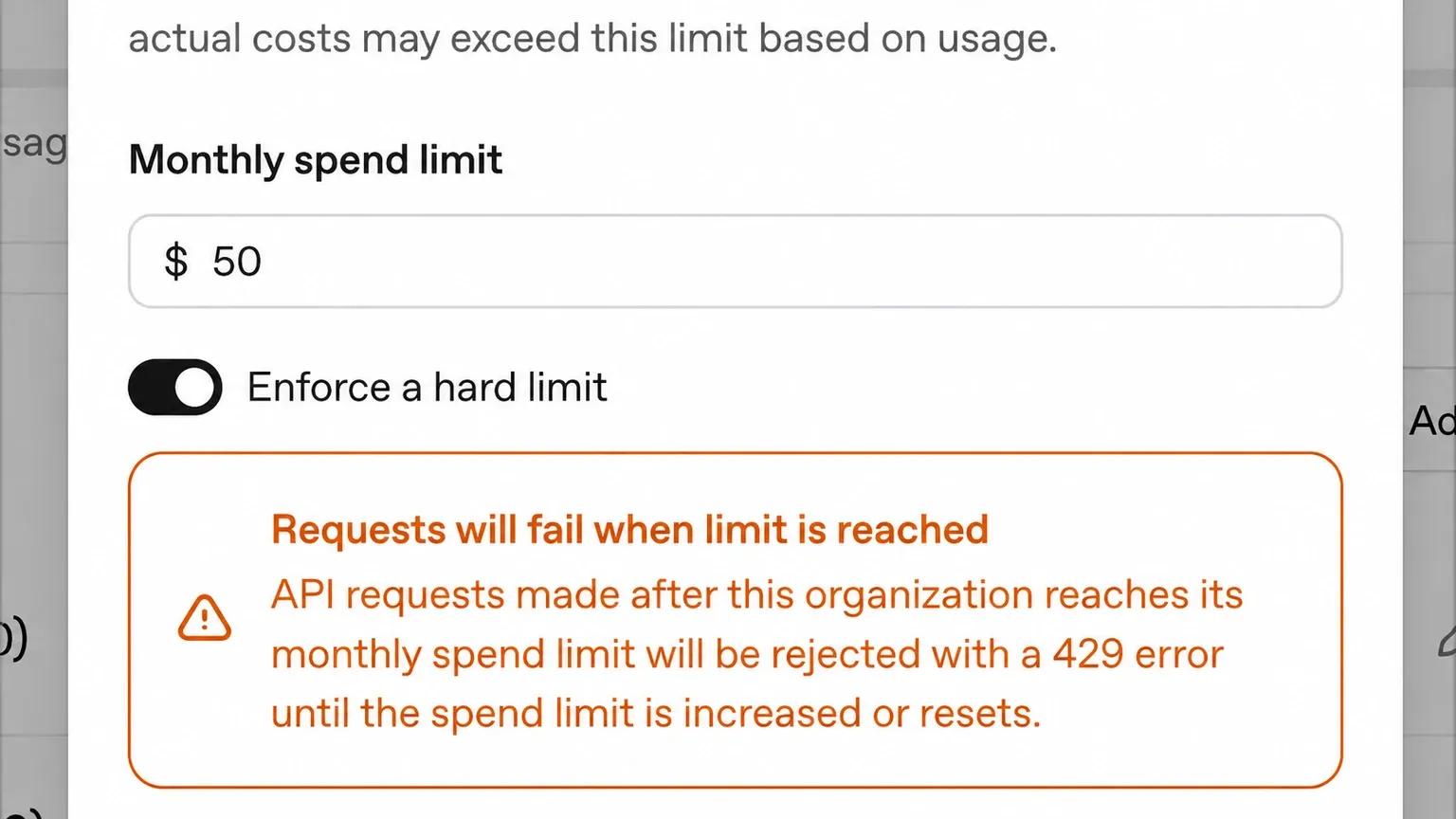
An organization limit covers its projects; a project limit covers only usage billed to that project. Both can apply to one request. Enforcement isn't instantaneous, so a small amount of extra usage can push recorded spending above the amount. Leave room for that delay when choosing a budget you can afford.
API rate limits are another control: they restrict requests or tokens over time. The rate-limit guide distinguishes those from OpenAI's approved monthly organization usage limit and from the spend limits you configure. Buying a ChatGPT plan doesn't turn an API key into unlimited traffic.
Match the error to the right action
A 429 response alone doesn't tell you to buy credits. Read the error code before changing billing. OpenAI's spend-limit guide identifies these different cases:
credit_balance_exhausted: check the API organization's balance and credit expiry. Add API credits only if you want to fund further usage there.organization_spend_limit_exceededorproject_spend_limit_exceeded: check the corresponding enforced cap. Wait for the monthly reset, or deliberately raise the reached limit if more spending is acceptable. Adding credits alone doesn't remove the cap.organization_usage_limit_exceeded: review the organization's approved usage limit and request an increase if needed.- A request or token rate-limit error: follow its retry guidance and the rate-limit documentation. More API credits don't remove the rate limit.
For a tool using your ChatGPT plan through sign-in, check Settings → Usage instead. The app can reach its own weekly cap while your overall plan still has usage remaining. Repeatedly signing in won't restore that allowance; inspect the saved app limit and reset information. Don't buy API credits to repair a limit on this different connection.
Before approving a payment, write down the connection method, the account or organization receiving the funds, and the limit you're trying to change. If your task can stay inside ChatGPT, choose a concrete job from the everyday AI work guides and check whether the existing allowance finishes it. Fund the route your work uses.