

To add a sigh in ElevenLabs, select Eleven v4 or Eleven v3 and place [sighs] in the text where the reaction belongs. Generate a short passage with the surrounding words, then listen before applying the delivery to the full script. I'd start with one reaction tag because a sigh changes the speaker's performance; if you only need a pause, use the pause method supported by the selected model.
Check the selected model
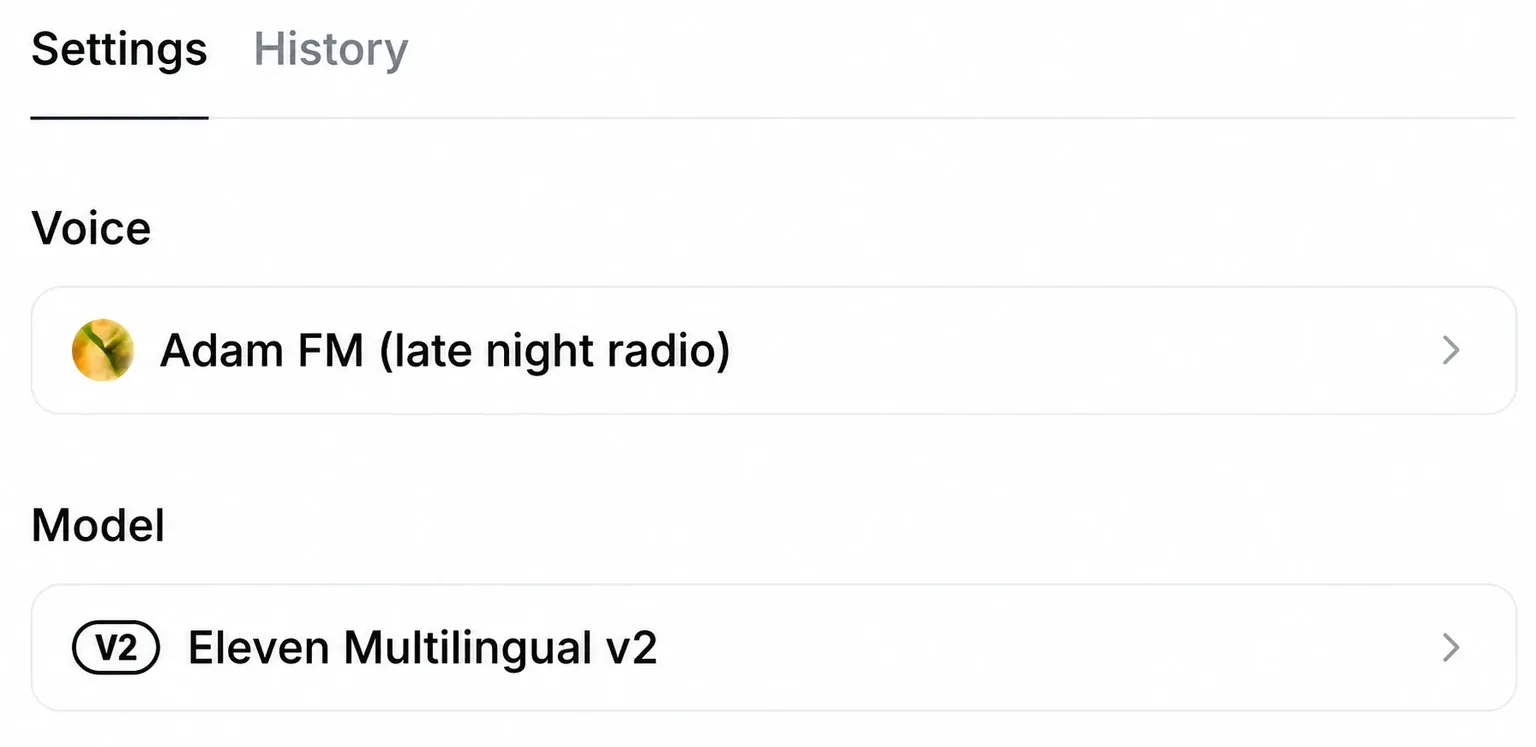
Open your Text to Speech settings and read the selected Model. A voice name and a model name identify different choices. The same voice can behave differently under another model, so keep both recorded when comparing takes.
The audio-tag guidance supports square-bracket directions in Eleven v4 and v3, including [sighs], [laughs], and [whispers]. Eleven v4 Turbo also supports audio tags for real-time use. These aren't universal commands for every ElevenLabs model.
| Selected model | Use this route |
|---|---|
| Eleven v4 or Eleven v3 | Audio tags for reactions and delivery; tags and punctuation for pacing. No SSML break tags. |
| Multilingual v2, Flash v2, or Flash v2.5 | Documented SSML break syntax for a pause. Don't assume the v4 sigh-tag workflow applies. |
Add a sigh to a short passage
- Keep an untouched copy of the approved script. Select a short passage that includes the sentence before and after the intended reaction.
- Choose the intended voice and v4 or v3. Place
[sighs]at the exact point where the speaker should react. - Check the displayed credit charge, then choose Generate.
- Listen for a sigh in the intended place and check every spoken word. Decide whether the reaction fits the speaker's meaning.
- Save the acceptable take and its text, voice, model, and settings before making another change.
This constructed example keeps the words unchanged and adds a reaction between sentences:
I thought the final file was ready. [sighs] I'll check the missing page before we send it.A sigh can imply fatigue, frustration, relief, or resignation. Choose the direction that fits the actual message rather than adding a reaction because the script sounds flat. For breathing reactions, ElevenLabs explicitly lists sighs and exhales for v4 and v3. A tag guides generation; the acceptance check is the audio you hear in context.
Choose a pause instead of a reaction
Use a pause when the speaker needs space without an emotional breath. In v4 and v3, start with ordinary sentence punctuation and use a short pause direction where needed. The prompting examples include [short pause] and [long pause]; those labels don't specify a fixed number of seconds. Ellipses can add hesitation, so don't scatter them through a neutral narration merely to slow it down.
For Multilingual v2, Flash v2, and Flash v2.5, the pause instructions document <break time="1.5s" /> and a supported pause value up to three seconds. Use that syntax only on the supported model route. This constructed input demonstrates the documented syntax:
The first file is ready. <break time="1.5s" /> The second still needs approval.That control requests a natural spoken pause, which can include a voice's filler sounds. It isn't a promise of precisely measured digital silence. For a fixed gap required by an edit or broadcast cue, adjust and measure the gap in your approved audio editor after generating the words. Excessive break tags can introduce noise, artifacts, or unwanted speeding up, so don't stack them to force a long silence.
Adjust expression without changing the message
Give the model enough surrounding text to understand the reaction. The emotion guidance explains that preceding and following language influence delivery. A sigh pasted into an isolated fragment may produce a different reading from the same tag inside the full exchange.
Keep directions specific to the voice performance. If the line should sound tired, describe that delivery instead of adding unrelated environmental cues. The prompting guide warns that a tag can be interpreted as a sound effect rather than a vocal direction. Change one instruction at a time so you can tell which change improved the take.
Use the controls available for the selected model. Eleven v4's settings include Stability and Similarity, with an additional Clone Strength control when a Professional Voice Clone is selected. V4 doesn't have the older Style or Speed sliders. Lower stability permits more variation; a slider recipe from another model doesn't establish the right setting for this voice and sentence.
If you use Enhance to add audio tags, compare its returned text with the untouched script before generating. The helper is intended to preserve the words while adding directions, but its prompting rules also allow capitalization and punctuation changes. Those changes can alter emphasis or meaning. I'd keep the smallest edit that delivers the required reaction, then check the whole passage again.
Fix an ignored tag or unwanted sound
- The direction is spoken aloud or ignored: confirm v4 or v3 is selected, inspect the square brackets, and try a documented short tag in a contextual sentence.
- The sigh is too dramatic: remove competing directions, restore ordinary punctuation, and compare the phrase with a simpler instruction.
- The voice changes character: return to the accepted voice and model settings. A new Voice Design prompt changes the voice itself; it isn't necessary for one expressive line.
- The pause sounds nervous: remove repeated ellipses and choose the model's supported pause method.
- You need a standalone breath asset: use the separate Sound Effects workflow and place the approved file in your edit. Don't assume it will match your narrator's identity or timing.
The Sound Effects workflow generates a separate effect from a description and lets you review and download it. That is a useful alternative when the deliverable is an isolated sigh file. Check the applicable output rights before using an effect in a commercial project; a free download button alone doesn't settle the license for your intended use.
Approve the complete take
Review the full narration after the short passage works. Confirm the tag hasn't caused omitted words, a distracting breath, an unintended emotional message, or inconsistent pacing between sections. Listen to the exported file too, especially at the join around the edited phrase.
Budget for changed input. The website Text to Speech retry rules allow two free regenerations only under their conditions: unchanged text, voice, and model, an original generation less than two hours old, and no page refresh. Adding or changing a tag changes the text. Those website conditions don't promise free API retries. Use the ElevenLabs credit guide when the allowance or displayed charge changes the decision to regenerate.
Keep the approved script and take together so the final words, reaction, and selected model are clear. Use the AI audio task guides when the next job needs a different workflow.