

Reproduce the website bug, give the coding assistant the failing steps and the smallest relevant files, then ask for a diagnosis before a patch. Review the diff and repeat the exact interaction on a local copy or staging site before keeping it. If the issue touches login, payments, permissions or stored customer data, hand the evidence to the maintainer instead of experimenting on visitors.
A good repair brief separates evidence from a hypothesis: record the page, browser, viewport, starting state, exact actions, expected result and actual result. The assistant should name the check that would distinguish its leading causes before it proposes a change.
A menu that won't reopen or a card that overflows on a phone is a useful starting point. Login, payments, permissions, and changes to stored customer data need a developer who can review the consequences. If you don't have the source files or access to a safe preview, prepare the bug report below and hand it to the person who maintains the site.
Capture the failure before asking for a fix
Write down the page, browser, screen size, starting state, and exact actions that produce the problem. Separate what happened from what you expected. A screenshot can show the wrong spacing; a short sequence explains how the page got there.
Here is a constructed example for a navigation bug:
On the guide page, open the menu at a narrow phone width. Widen the browser until the desktop navigation appears, then return to the same phone width. Press the menu button again. Expected: the navigation opens and its links are usable. Actual: the button responds visually, but the navigation stays hidden. A fresh page load at the phone width works until I repeat the resize sequence.
Replace those observations with your own. Don't tell the assistant that a CSS rule or event handler is the cause unless you've found evidence for that claim. Keep the failing sequence: reducing this report to “mobile menu broken” removes the clue that distinguishes the bug. If you can’t reproduce the failure, collect the conditions from the person who saw it and try those first; hold off on a patch until there’s a behavior you can check.
For a code example, follow Stack Overflow's minimal, complete, reproducible criteria. Supply the smallest set of files that still shows the failure, including connected HTML, styles, and JavaScript when they matter. Send code as text with filenames; a picture of code makes the assistant reconstruct information you already have. Repeat the failure after removing unrelated files so the smaller example still demonstrates the same bug.
Choose the next evidence from the symptom
You don't need a new AI subscription to write a useful report. A chat assistant can discuss the code you supply; an editor assistant can work with attached files and project context. GitHub's Copilot prompting guidance recommends relevant context, explicit requirements, and smaller tasks. Use your existing tool and give it enough context to explain this defect.
| What you observe | What to collect next |
|---|---|
| A visual overlap or overflow | A screenshot at the failing width, the affected element, and its relevant styles. |
| A click does nothing or throws an error | The exact interaction and any Console message produced at that moment. |
| Content or a submission fails to load | The relevant Network request, its status, and a redacted response. |
| The bug happens only on the live site | The deployed release, failing URL, browser state, and differences from the working preview. |
In Chrome, open DevTools with Ctrl+Shift+J on Windows or Linux, or Command+Option+J on Mac. The Console displays logged messages; repeat the failing action and copy the relevant error text and source location, if present. An empty Console doesn't establish that the page works.
For a loading problem, switch to Network before repeating the action or reloading. Chrome's Network tutorial explains that requests are recorded while DevTools is open. Select the relevant request to inspect its headers and response; the Status column shows the HTTP response code. A status or error message is a clue to investigate, not a diagnosis by itself.
Remove tokens, cookies, passwords, customer records, and private form contents before sharing screenshots or logs. Supply only code you're allowed to share. Avoid sending an entire network export when a redacted request and error explain the problem.
Make a checkpoint and set the edit boundary
Save a recoverable copy before the assistant changes files. If the project uses Git, review and preserve your existing work so you can distinguish it from the new patch. Otherwise, keep a separate backup of the relevant files. Check that you know which version to restore. Keep the assistant’s tool permissions limited to the local or staging work you intend; writing “don’t deploy” in a prompt is not an access restriction.
I'd ask for the likely cause and a way to distinguish it from other explanations first. That gives you something to check before the assistant starts rewriting. Allow inspection of connected files, but keep changes tied to the reported failure. A small fix can need more than one file; the useful limit is a justified change, not an arbitrary file count.
Adapt this prompt after attaching the actual report and code. The navigation sequence is an example, not a test result:
Investigate one existing website bug before editing.

Failure: after opening the phone menu, resizing to desktop,
and returning to the same phone width, the menu won't reopen.
Expected: the menu opens and its links remain usable.
Fresh load at phone width works until that sequence is repeated.

Context I will attach:
- Failing page and exact browser/viewport details
- Screenshot and relevant redacted error or request evidence
- Navigation component, connected styles, and related scripts
- Framework and package versions from this project
- Existing checks and recent relevant changes

First explain what the evidence supports, what is still a
hypothesis, and the smallest check that would distinguish causes.
Ask for missing files or observations. Don't assume a CSS cause.

After I approve the diagnosis, propose the smallest justified patch.
Preserve content, URLs, design, dependencies, and unrelated behavior.
Ask before changing those boundaries. Don't deploy, change live data,
or install a package as part of this task.

Finish with the changed files, reason for each change, checks
actually run and their results, and anything not verified.
A proposed check must not be reported as a passing check.
If you're starting a new page rather than repairing an existing one, use the website brief for a coding assistant first. A repair request needs the current behavior and the failure; a new-page brief starts with the visitor's task and the content to build.
Inspect the patch before keeping it
Read the diff, which shows added and removed lines, alongside the bug report. Ask the assistant to connect each changed file to the cause. A patch that hides the menu button, removes the failing interaction, or suppresses the error hasn't delivered the expected behavior.
Check the whole set of changed and newly created files. The VS Code change-review guide notes that its pending-edit list only tracks supported edit tools; changes made through terminal commands or scripts can sit outside that list. In a Git project, inspect Source Control as well.
Review controls depend on the assistant and session type. In supported Copilot editor working sets, Keep retains pending edits and Undo reverts them. Those pending files are already saved to disk: running the page uses the changed files before you press Keep. Keep doesn't stage or commit them. Other session types use saved-file diffs rather than that pending-edit workflow.
Repeat the original action and nearby checks
Open the changed local or staging version and repeat the exact failing sequence. For the example menu, start at the recorded phone width, open it, widen to desktop, return to that phone width, and open it again. Confirm that the links remain visible and usable. A clean build alone doesn't show that this interaction now works.
Then check what the patch could have affected: closing and reopening the menu, following its links, desktop navigation, and keyboard focus on the menu button. Use the project's existing build and test commands, and inspect the results. If no automated check covers the bug, ask for a focused regression check in the project's established test setup; review whether it tests the original failure condition.
Keep a short result note: which version you checked, the steps repeated, the observed behavior, and the checks that passed or failed. If a command couldn't run, record the missing requirement. “Looks fixed” and “tests suggested” aren't evidence of completed checks.
Stop the edit loop when evidence stops improving
If the patch fails, send back the new observation and compare it with the original report. Ask which hypothesis the result rules out. Pause unrelated edits until you have a better explanation; adding another speculative fix makes the next comparison harder.
When the preview works but the live site fails, investigate the deployed version and relevant configuration or request differences before changing more source. Don't remove permission checks or weaken browser security to make an error disappear. A fix involving authentication, live data, or an external service needs its maintainer's review.
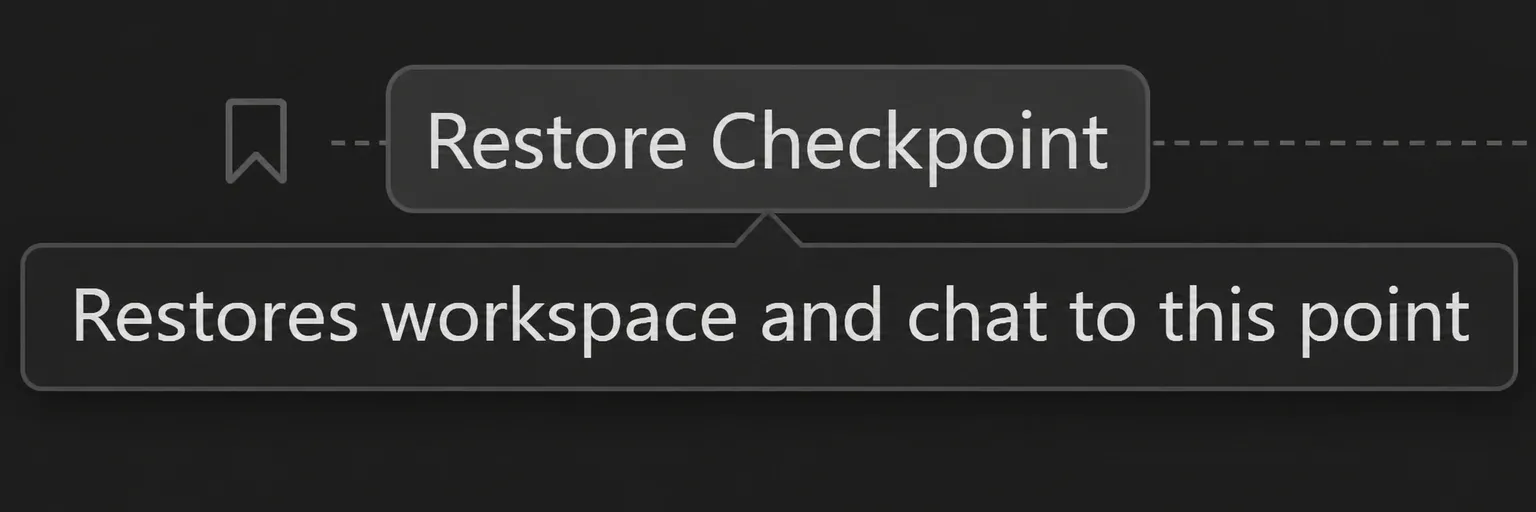
For supported VS Code sessions, Restore Checkpoint can return affected workspace files and chat to an earlier request. Review what will be removed first: later useful work may be included. The checkpoint recovery instructions warn that this doesn't reverse completed terminal commands, network requests, deployments, or changes to external services. Git and service-specific recovery controls cover different parts of that history.
If you can't explain the patch or reproduce the fix, keep the report, current diff, and check results for a developer. For a small repair you can verify, keep the reviewed change with that evidence before using your normal release process. The coding guides cover other bounded tasks when you're ready to move on.