

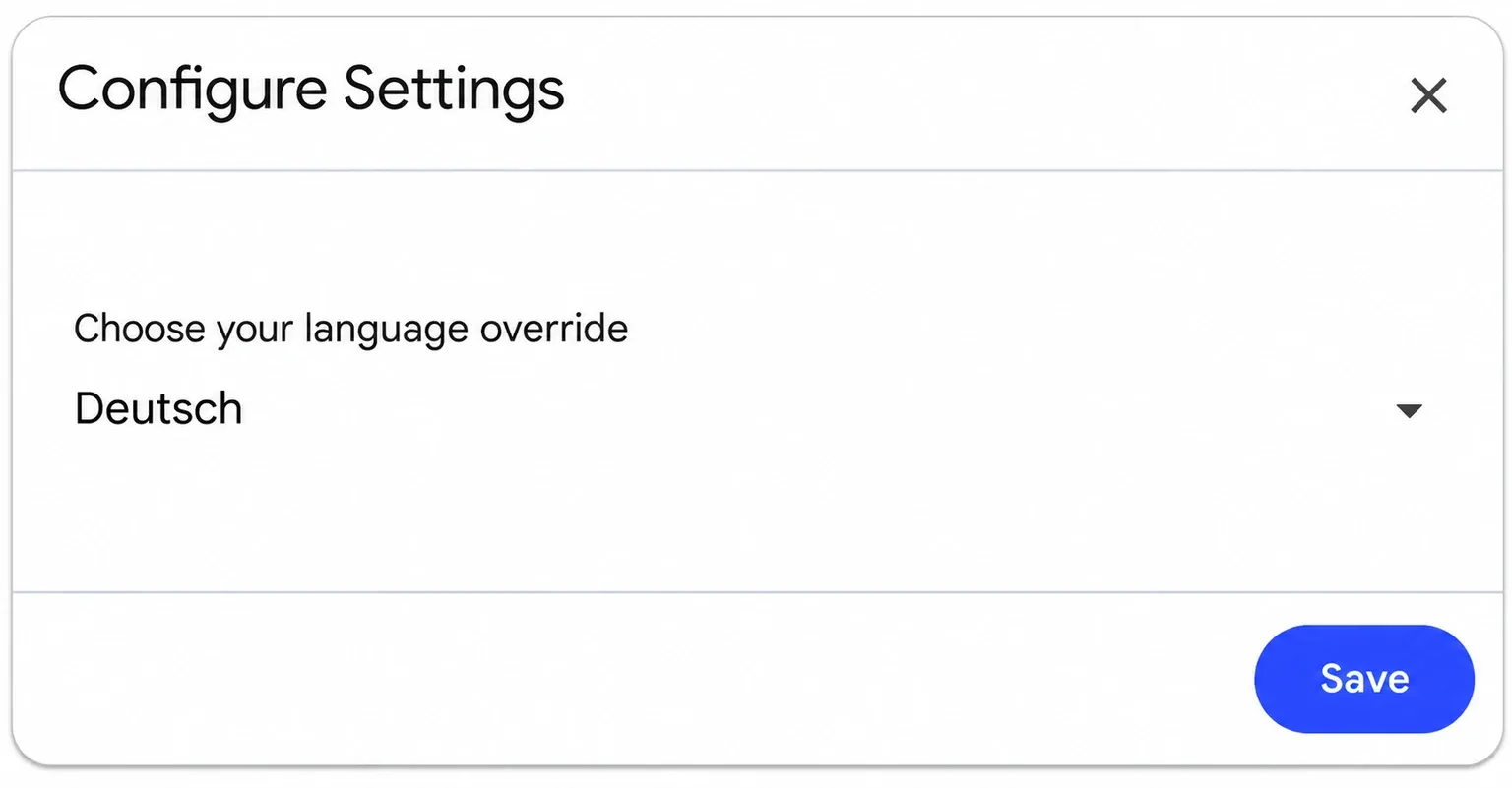
To change NotebookLM's answer language, open the notebook in a browser and choose Settings → Output Language. Pick the target language, save if the dialog asks, then request a short answer and compare its important wording with the source. Audio and video outputs have their own language control.
I'd test a short cited response before generating a long report or recording. That catches a wrong language and a changed technical term while the comparison is still small.
Set the browser output language
- Open the notebook that contains the sources.
- Choose Settings → Output Language.
- Select the language shown for the output you need and confirm.
- Select only the relevant source, ask one focused question and inspect the answer.
Google's output-language instructions cover chat, study guides, documentation, Audio Overviews and Video Overviews. The account's preferred language can supply a default, but each feature can expose a different list. Check the control for the output you are creating.
Keep three languages separate
| You want to change | Use this control |
|---|---|
| New chat or Studio output | Output Language, plus the generation panel for that artifact. |
| Menus and buttons | Google Account or device language settings. |
| Words in the source | The original document; an output setting cannot edit it. |
| Existing answer or audio | Create a new output and review it. |
A source can stay in one language while the answer uses another. A translated summary is still a summary. Preserve names, dates, units, permissions and conditions from the source; keep the original term beside a specialized translation when the wording matters.
Check a Vietnamese answer
Select the source, choose Vietnamese and ask for one short paragraph. Vietnamese appears in Google's documented browser and Audio Overview language lists. The same route applies to another offered language.
Use only the selected source.
Answer in Vietnamese.
Summarize [one named section] in a short paragraph.
Cite each important claim.
Keep names, dates, amounts and conditions accurate.
Put the original technical term in parentheses.
Mark anything the source does not settle.
Open each citation and compare the original wording with the translation. Watch for “may” becoming “must,” a dropped “only,” changed decimal separators or a different person name. If you cannot read an important source language, have a competent reader check the passage.
Choose the Audio Overview language
Open Studio → Audio Overview and choose the language in the generation panel before creating the file. Google's Audio Overview controls document a language choice and access requirements. Listen for the target language, then audit important claims against the source. A spoken summary is not an exact translation.
Length controls and interactive mode can have narrower language support. Do not infer support for one feature from another. Keep the previous file until the replacement passes review; deleting an Audio Overview breaks its share link.
Use a phone when the web control is missing
In a mobile browser, use Settings → Output Language. In the app, the preferred browser or device language may control chat, while Audio Overview has a language control beside its edit action. Google's mobile feature guidance distinguishes these routes.
Fix a wrong-language result
- Wrong chat language: recheck Output Language and ask a short fresh question.
- Correct chat, wrong audio: set the Audio Overview language and generate a new file.
- Right language, wrong meaning: follow the citation and repair the translated wording from the source.
- Missing language or control: check feature, app/browser and account availability.
Keep the reviewed output clearly named and trace its important claims to the original passage.