


Make a separate working copy, remove everything the AI task doesn't need, then reopen that exact file and check both visible content and hidden data before uploading it. A black rectangle over a name isn't enough evidence that the name is gone. If you can't inspect the file's contents, or your organization hasn't allowed the destination, keep the file out of the chat.
Keep only the information the task needs
Start with the question you want answered. A request to improve the wording of one paragraph rarely needs the whole contract. A request to group support complaints may need the complaint text, but usually doesn't need customers' contact details. I'd reduce the input before reaching for a redaction tool because content left out of the working copy doesn't need another removal check.
Mark the details you must remove. Names and email addresses are easy to recognize; a rare job title combined with a small town can identify someone too. In its explanation of direct and indirect identification, the UK's Information Commissioner's Office describes the risk of combining otherwise less obvious details. The practical lesson is to review the meaning of the remaining passage, not only search for a list of names.
Some confidential information isn't about a person. An unreleased price or private acquisition plan can still matter after every customer name is removed. Passwords and access tokens have no useful place in a document you're sending for a wording or summary task. Remove those values completely.
When a relationship matters, replace an identifier consistently. In a made-up support example, the same person could become Customer A throughout the copy so the assistant can connect their messages. Don't include a second column containing the real name. If you need a replacement key later, keep it separately in the approved private location.
That replacement is pseudonymization, and it doesn't establish anonymity. The ICO's pseudonymization guidance explains the separate information that can reconnect a label to a person. These are useful technical distinctions, not a claim that this checklist establishes legal compliance in your jurisdiction.
Preserve the facts needed for the answer. Changing dates can destroy a sequence; changing amounts can invalidate a calculation. If a detail is both sensitive and essential, choose an environment approved for that data or change the task. Don't silently alter the numbers and rely on the AI's analysis of the altered copy.
Protect the original and choose a working copy
Keep the source in its approved location and save a separately named copy before editing. Redaction and hidden-data removal can be irreversible. Use a neutral filename such as summary-input.docx; a person's name in the filename can disclose the very detail you removed from the pages.
For a short text task, a fresh document containing only the necessary passage is often easier to review than a heavily edited original. Paste text without bringing across the original formatting, then inspect the new document as well. Sensitive details can remain in the words themselves, so a fresh file still needs a content review.
For a file you must preserve as a document, use the appropriate route below. Word's inspector addresses supported hidden content, PDF redaction addresses selected content, and a new table limits the data carried into analysis. None of those steps grants permission to send the file to a particular service.
Use tools and storage locations approved for the source data. Uploading an original to an unfamiliar online redactor adds another recipient before you've removed anything. Asking the destination chatbot to redact the original also sends it the information first. I'd keep preparation within the approved environment and check the editor's processing terms before giving it the original.
Inspect a Word document
In desktop Word for Windows, edit the visible text in the working copy first. Check the full document, including headers and footers. Then inspect hidden content. Microsoft's Document Inspector instructions recommend a copy because some removals can't be undone.
- Save the copy with File → Save As. Confirm you're editing the copy.
- Open File → Info → Check for Issues → Inspect Document.
- Select the categories to inspect. Include comments and revisions, and document properties and personal information; review the remaining categories for the document you're sharing.
- Select Inspect, read the results, then use Remove All beside each category you intend to remove. Don't remove needed content without checking the effect.
- Select Reinspect, review the remaining findings, then save and reopen the copy for the final checks below.
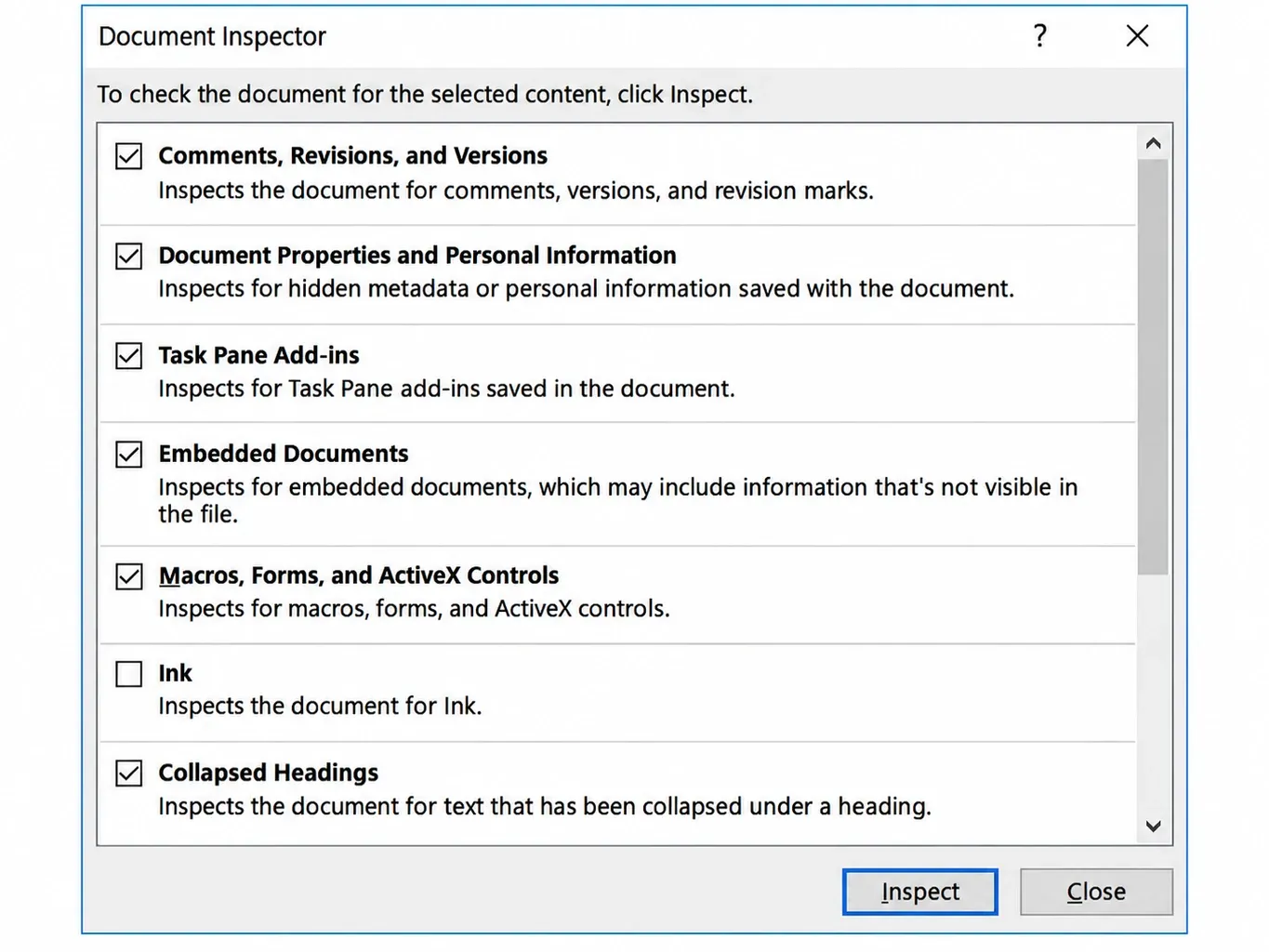
The inspector can find supported items such as revision marks and author properties. It isn't a general detector of every sensitive sentence. Microsoft also identifies specific blind spots: its Hidden Text check doesn't detect white text on a white background, and its Invisible Content check doesn't detect objects covered by other objects. A shape placed over a name therefore needs more scrutiny than a clean-looking page.
Review the saved wording after removing revisions. It must contain the intended final text, with the sensitive information removed from that text as well. If your editor doesn't offer Document Inspector, don't assume an identically named setting exists elsewhere. For a simple excerpt, make a fresh plain-text copy in an approved editor and review it; for a complex file, use your organization's document-cleanup route.
Use actual PDF redaction
Use a PDF editor's redaction function that removes content. Qoppa's explanation of PDF redaction shows why a black overlay can leave text available to copy and paste. Highlighting text or cropping the page doesn't establish removal either. Avoid using print-to-PDF as a blanket cleanup method: a different-looking output still needs its own inspection.
For selectable text on a Mac, Preview provides Redaction Selection in the Markup toolbar. Open the working copy, show the Markup toolbar, and use that tool to select the text to remove. Review the selections before closing the document: Apple says the redaction becomes permanent once the document is closed. Reopen the saved copy and check it.
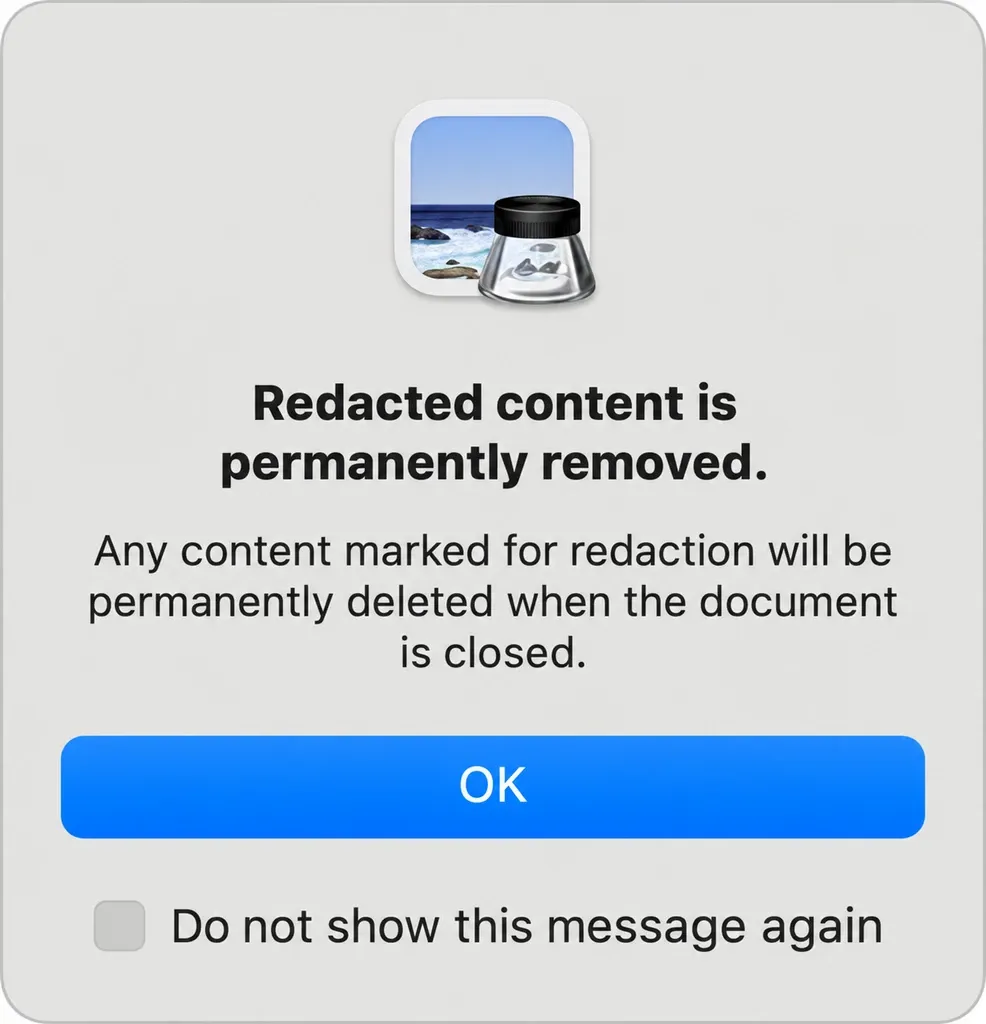
Preview's redaction has a documented exception: table-of-contents entries linking to redacted text aren't removed. Inspect those entries too. Apple describes Crop as hiding part of a PDF, which is a different operation from redaction.
Don't extend that text-redaction instruction to every part of a PDF. A scanned page can contain the sensitive detail in the image itself, and an OCR text layer may contain a second representation. Qoppa's description of PDF sanitization identifies hidden content such as metadata and attachments, separate from the visible paragraph. You need an approved tool and a review process that cover those contents, not just a selectable name.
If you can't verify removal from both the page image and any text layer, don't upload that PDF. For a task that only needs a short passage, create a new text copy containing the allowed words and check it instead. When the task needs the original layout or attachments, ask the designated document owner for an approved redacted version.
Prepare a smaller table
For a summary or classification task, I'd start a new table containing only the required rows and columns. Remove unnecessary identifiers, then review free-text cells as carefully as the identifier columns. A complaint can name a person even after the Name column is deleted. Use consistent replacement labels only when the task needs to connect records.
Keep the replacement key out of the upload. Review combinations such as a precise date and a rare role before assuming the remaining rows are anonymous. If you generalize a value, record that change privately and check that the intended analysis still makes sense.
A full Excel workbook needs a different review from a small CSV file. Microsoft's workbook inspection guidance covers hidden rows and worksheets, and warns that removing them can change calculations. Work on a copy. If you don't understand the hidden data, close the inspector and unhide it for review before removing it.
Excel's inspector can also detect items it can't remove for you, including external links and some cached data used by PivotTables. A completed inspection isn't a statement that all such content is gone. For a simple AI task, a new table with the required values is easier to assess than an unexplained workbook with connections and embedded objects. If the task depends on those features, use the approved workbook review process.
When your chosen upload is CSV, reopen the CSV itself and read its headers and cell contents. Don't rely on the appearance of the workbook you exported from. Check that the export contains the intended data and that the removal of fields hasn't made the rows misleading.
Check the saved file before upload
Review the exact file you will attach, after saving and reopening it. Keep the original separate during this check so you don't accidentally inspect one file and upload the other.
- Search for the identifiers you removed, including useful fragments and alternate spellings. Finding none is one check, not proof that every identifier is gone.
- Where text can be selected, copy the edited passage into an approved local text editor and read the pasted text. Stop if concealed text reappears.
- Inspect every page or row visually. Pay attention to images and recurring headers, and review comments, properties, or attachments supported by the format.
- Read the remaining content for identifying context and confidential facts. Check that the text or values still support the intended task.
- Confirm the neutral filename and approved destination. In the attachment picker, select the checked copy and verify its name before submitting.
A failed search can't rule out text stored as an image or identifiers you didn't think to search for. If the file is too complex to inspect reliably, stop at this point. More automated scanning can help locate candidates, but a detector's empty result doesn't resolve an unreviewed file.
Attach only the checked copy. Don't give the assistant a connector or shared-folder link that also exposes the original, and don't add the replacement key to the prompt. Service retention and access settings remain a separate decision; redacting a file doesn't establish that the service is suitable for the remaining information.
If you've already submitted the original, editing a local copy won't change the submitted file. Stop sending more information and follow the designated incident process. Kosh Solutions' after-upload response guidance distinguishes the service's different storage and sharing surfaces and recommends preserving incident details. For work data, notify the responsible security or privacy contact before deleting evidence; exposed credentials need revocation or rotation through their issuing service.
For the next file, write the task first and prepare the smallest useful input for it. The everyday AI work hub has task guides to use after the file and destination have passed your checks.