

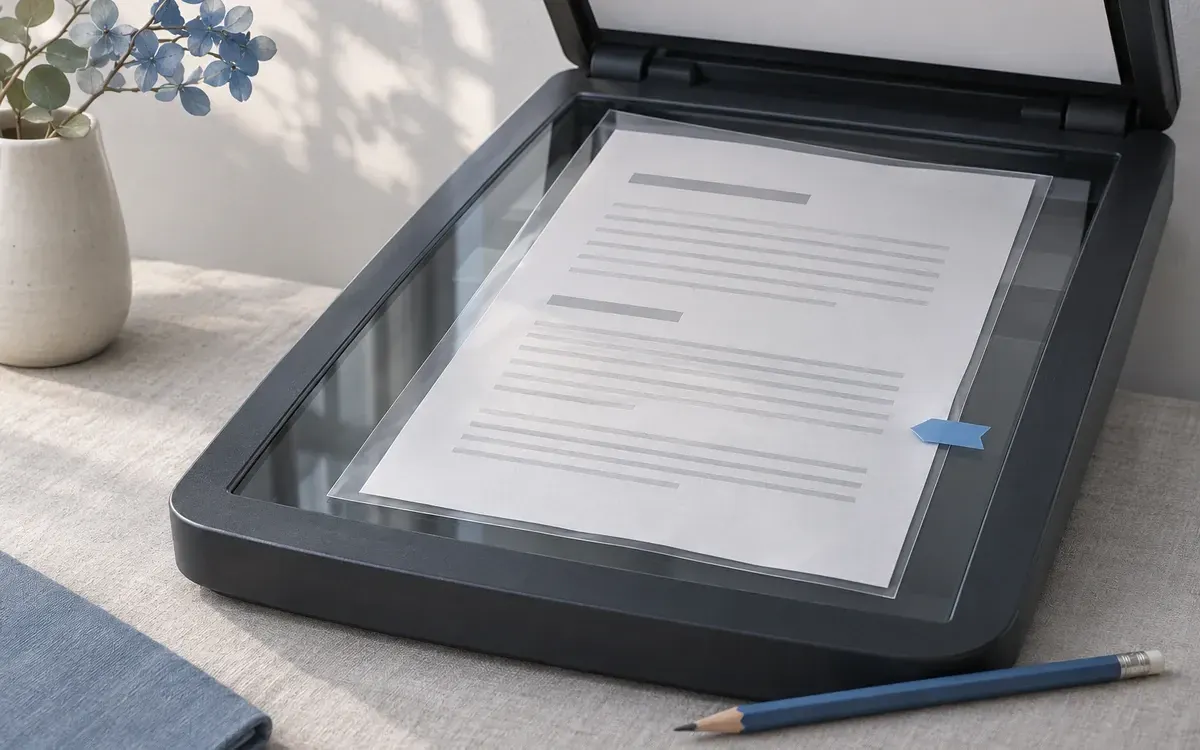
ChatGPT can analyze text and images in a PDF attached directly to a chat, but a readable-looking scan can still produce missing or incorrect text. Start with a short transcription from a page you can check. If the PDF fails, try a clear image of that page or use optical character recognition (OCR) to turn the scan into text, then compare the result with the original before asking for a summary.
I'd check one useful passage before processing the whole document. That separates a source-reading problem from a poor summary prompt, and gives you a concrete reason to continue or change the input.
Check the original page first
Keep the original PDF and make a separate working copy. Upload only material you're allowed to share with the service you choose; using an online OCR service would share the document with that service too.
Open the PDF in your usual viewer. Try selecting a few words within a sentence and pasting them into a text editor. Read the pasted words, including punctuation. A page that copies as a picture, returns nothing, or produces garbled characters needs different handling from a page that supplies readable text.
Repeat the check on the pages you need. One selectable paragraph doesn't establish that the rest of the PDF has usable text. A document can contain a mixture of typed pages, scanned inserts and an imperfect OCR layer.
Look at the scan itself as well. If a word is too faint to read in the original, obtain a clearer copy where possible. Asking for a more confident answer won't recover evidence missing from the page.
Attach the PDF to the conversation
In ChatGPT, select + in the prompt area, then Add photos & files, and choose your working PDF. OpenAI's current file-upload guidance says ChatGPT can analyze text and images in PDFs attached to a conversation, including a direct attachment in a GPT chat or project chat. Availability still depends on the account settings, client and selected model.
A PDF saved as project material or GPT knowledge is a different case. OpenAI says embedded images in those files may not be included automatically. When the answer depends on the scanned page, attach the PDF directly to the conversation or supply the relevant image separately. Don't assume a subscription upgrade is the first fix for a missing passage.
Ask for transcription before interpretation. This example uses the viewer's PDF page position; change the page and heading to match your file:
Use only the attached PDF.
Transcribe the paragraph under “Delivery conditions” on PDF page 3.
Keep the original wording, spelling, numbers and punctuation.
Mark unreadable text as [unclear] instead of guessing.
Keep any printed page label separate from the PDF page position.
Do not summarize, correct the wording or fill gaps from general knowledge.
If you cannot access that page, say so.
Open the named page beside the response. Check the passage itself, rather than accepting the model's statement that it read the file. OpenAI's scanned-PDF transcription guidance recommends preserving original wording, marking unclear passages and keeping page labels when you need to compare text with the scan.
Try a page image when the PDF doesn't supply the passage
If the PDF upload fails or the response omits a visible passage, save the affected page as a PNG or JPEG using an available option in your PDF viewer. A clear screenshot of the relevant area is another option. Include the heading or page label needed to locate the passage; avoid shrinking a full spread until the letters are tiny.
Attach that image to the chat and ask for the same short transcription. State the PDF page position in the message. OpenAI's image-input guidance lists PNG, JPEG and non-animated GIF, with a 20 MB limit per image. It warns that unclear or rotated text can be misread and recommends enlarging text without cropping important details.
Use a focused image when a small passage needs attention. If a table depends on its column headings or footnotes, keep those in view too. A close crop that loses the unit can make a correctly read number misleading.
Check this transcription against the image before proceeding. A successful upload establishes that a file was attached; it doesn't establish that every character was recognized correctly.
Use OCR for a reusable text copy
For a document you need to search or quote repeatedly, OCR creates a text version you can inspect and reuse. Keep that version alongside the original scan. Choose an OCR tool approved for the document, especially when it contains private records.
Google Drive offers one documented route on a computer. Google's instructions for converting PDFs and photos to text recommend a file of 2 MB or smaller, upright pages and sharp images with clear contrast. That preparation guidance applies to this conversion route, not to ChatGPT's PDF limit.
- Prepare an upright, readable copy that meets Google's guidance, then upload it to Google Drive if you're permitted to store it there.
- In Drive on your computer, right-click the file and choose Open with → Google Docs.
- Compare the converted text with the original scan. Correct recognition errors in the working copy and retain page labels so you can trace quotations back.
- Copy the checked passage into ChatGPT, clearly labelled with its source and page position. Ask questions about that passage before adding more of the document.
Google warns that lists, tables, columns and footnotes may not be detected. Check reading order before using a converted page: text from two columns can form a plausible paragraph while joining unrelated sentences. For a table, verify each value against its row, column heading and unit in the original.
If the scan doesn't fit this route, use another approved OCR tool already available to you or obtain a better source file. Compressing a scan until small characters become unreadable defeats the purpose.
Repair recognition errors before asking for a summary
Check the details that would change your answer. A missing “not” can reverse a condition; a misplaced decimal can change an amount. Pay particular attention to names and reference codes that a language model might turn into more familiar words.
For example, imagine a scan says “Payment is not due before May 18” but the extracted text omits “not.” This is a hypothetical recognition error. Correct the transcription from the original, then ask ChatGPT to revise any conclusion that depended on the earlier wording. Polishing the incorrect sentence would preserve the wrong meaning.
Keep an uncertain word marked as unclear until you can resolve it from the source. Ask for a separate edited version if you want spelling corrections later. Mixing cleanup with transcription makes it harder to distinguish the document's wording from the assistant's changes.
For a long scan, work through explicit page ranges and keep a simple record of the ranges completed, checked and still missing. A response that covers the opening pages isn't evidence that the remaining pages were processed. Verify every consequential quotation or value you intend to use.
Separate an extraction error from an upload limit
If ChatGPT reports that the document is too large, compare it with OpenAI's current upload limits: 512 MB per document file and 2 million tokens per text or document file. Those are separate caps; being below the byte limit doesn't establish that a document is within the token limit. Prepare a smaller copy containing the pages you need, retaining the original file and page references.
If you see “No text could be extracted from this file,” check the source's text and try the page-image or OCR route above. The error alone doesn't establish the cause. If readable text copies correctly in your viewer but the file still fails, try supplying that checked excerpt in the chat rather than repeatedly uploading the same file.
An “upload limit reached” message needs a different response. OpenAI's upload guidance recommends checking the account and subscription, following any displayed retry time, checking saved-file storage and checking service status. Failed attempts can count toward the upload-rate limit, so repeated retries can make troubleshooting harder.
Once the text is readable and checked, use a bounded PDF-summary request with source checks. If you move the document to another assistant, verify its import rules separately: our guide to image files and web-page imports in NotebookLM explains a different set of source distinctions.