


Attach the PDF to Claude, ask one specific question with short supporting quotes and PDF page numbers, then check those passages in the original. For a long report, narrow the relevant sections before asking for a conclusion. If the answer depends on charts, check the document's length first: Claude's chat upload treats PDFs over 100 pages as text only.
I'd begin with a question you can verify, such as which conditions apply to a policy recommendation. A polished overview of an entire report makes omissions harder to spot. Keep the original PDF open beside the conversation throughout the review.
Choose the right input for the question
Use a service approved for the document. An upload shares the file with that service, so remove material you aren't permitted to send before attaching a copy. Preserve the original and record its title, edition or revision, and filename.
Claude's file-upload instructions distinguish these chat limits:
- Each file can be up to 500MB, with up to 20 files per chat.
- A PDF of 100 pages or fewer supports text and visual analysis, including charts and images.
- A PDF of 101–1,000 pages is processed as text only. PDFs over 1,000 pages can't be uploaded.
The visual threshold applies to the length of the file. A chart near the beginning of a 240-page report doesn't become visible merely because it sits within the first 100 pages. If the chart matters, prepare a shorter PDF containing the relevant section, caption and notes. Keep definitions or qualifications from elsewhere in the report with that excerpt.
For a scan, try selecting a sentence and inspect the copied text. If the pages contain only images, a text-only upload can't supply the evidence you need. Use a readable, shorter PDF within the visual limit or obtain a checked OCR copy. Compare recognized wording and page locations with the scan before trusting a quotation.
Passing an upload check doesn't establish that the whole document fits the conversation. Anthropic's explanation of length limits defines a separate context window: the information Claude can work with in one chat. Its size depends on the model, and some space is reserved for the reply. Start a focused chat and reduce the input if Claude reports a length limit; a paid upgrade isn't a substitute for checking the relevant pages.
Map the sections before asking for an answer
Write the question first, then use the PDF's contents and search to find likely sections. Search for alternative terms as well as the exact wording of your question. Read the surrounding paragraphs and follow cross-references to definitions, exceptions and appendices. A keyword match is a place to investigate.
You can ask Claude to propose relevant sections from the contents, but check that plan against the PDF yourself. Include a complete section when an isolated page would omit its conditions. If the question requires a conclusion about the entire report, a narrow excerpt won't establish that conclusion.
Record page positions as your PDF viewer shows them. Anthropic recommends those positions rather than printed page labels, which can differ because of front matter. When you split a file, keep a simple map: for example, “excerpt pages 1–8 correspond to original PDF pages 121–128.” If you combine nonconsecutive sections, list each range separately. Keep printed labels as an additional locator. Add this map to your message before sending it, and verify the first and last pages of each range against the original.
I'd make this map before uploading. A correct quote with an ambiguous page reference becomes difficult for another reader to check, especially after several excerpts have been combined.
Attach the file and request evidence first
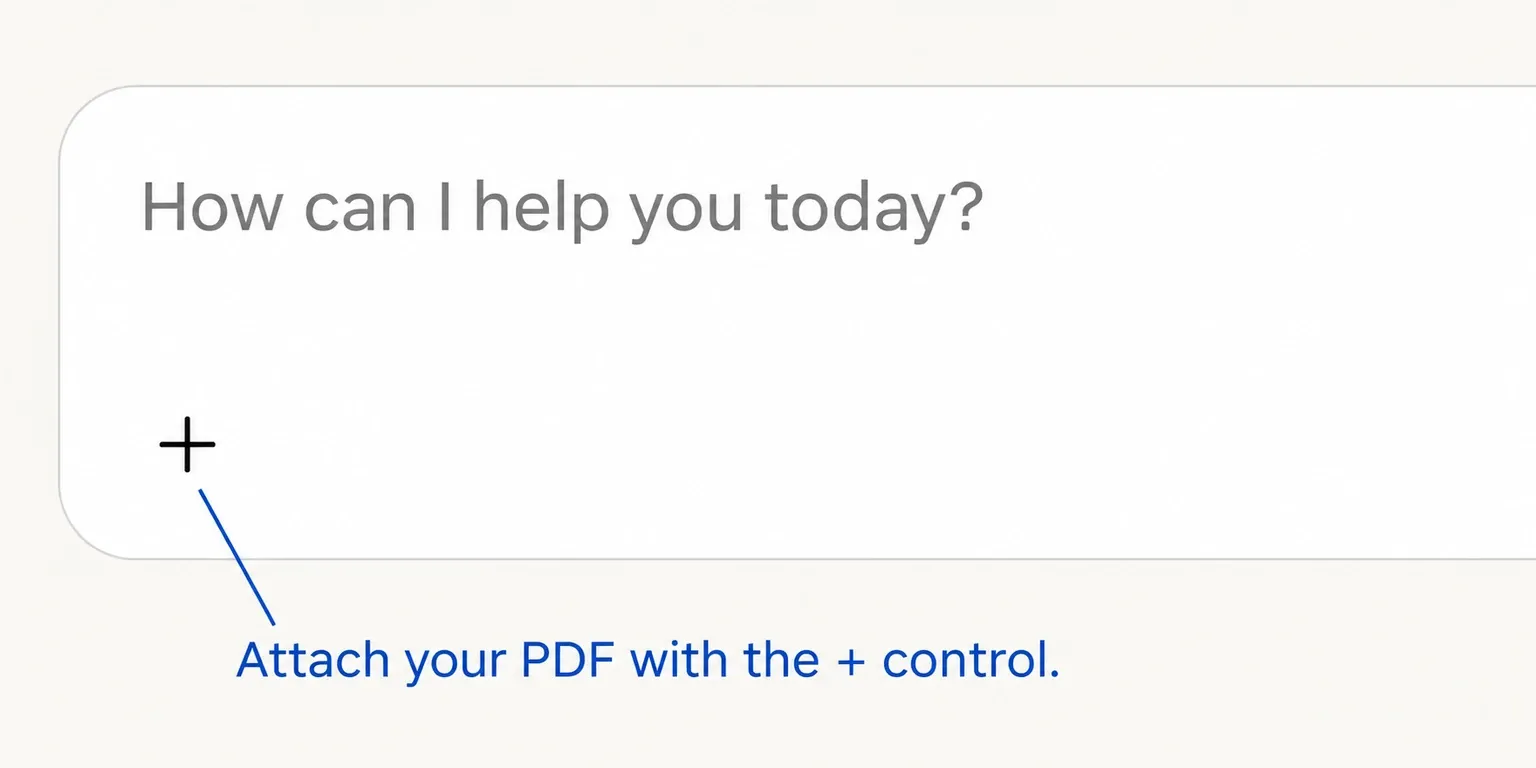
In Claude's chat box, select the + control at the lower left, choose Add files or photos, select the PDF and choose Open. Dragging the file into the chat is another documented route. Check that the intended filename appears as an attachment before sending your question. If an older revision is already in the conversation, I'd start a new chat with the current file to make the source unambiguous.
Anthropic's long-context prompting guidance recommends asking for relevant quotes before analysis. If you paste extracted text, place the document content and its source identity before the question. Label each document or excerpt separately so a passage can't silently move from one source to another.
Adapt this prompt to the file and question you have. The filename and task below are examples:
Use only the attached "annual-review.pdf" to answer this question:
Which conditions limit the report's recommendation to expand the program?

First identify the relevant sections and give short exact supporting quotes.
For each quote, include the filename, PDF viewer page position and section heading.
Keep printed page labels separate. If this is an excerpt, also use the original-page map I provide.
Include exceptions, definitions and contrary passages that change the answer.
Then explain the answer using those passages.
Separate what the report states from your interpretation or any calculation.
If a chart is needed, identify it and say whether its visual evidence is available.
Do not replace missing document evidence with web search or general knowledge.
Report inaccessible or unreadable sections and the scope you considered.
Mark an answer as unsupported when the supplied evidence doesn't settle it.
Do not infer that information is absent from the full report because you didn't find it.
Read the evidence before accepting the explanation. A list of sections from Claude is a proposed coverage record, not independent proof that every page was considered. Add missing definitions or referenced appendices and repeat the bounded question when necessary.
Check that each citation supports the claim
For every claim you intend to use, open the named page in your own PDF viewer. Locate the exact quote and read the surrounding passage. If the wording isn't there, stop using that claim until you've found a real supporting passage. Anthropic's guidance on incorrect responses warns that Claude can produce convincing quotations that aren't grounded in fact.
- Match the source. Confirm the file version and original page. An excerpt's page 3 may refer to a different location in the complete PDF.
- Read the condition with the claim. Check negation, eligibility and exceptions. Look beyond the quoted sentence when the next paragraph limits it.
- Verify quantities in context. Match the year, unit and population or category. For a calculation, check the source inputs and arithmetic separately.
- Open visual evidence. Read the chart's axes, legend, caption and notes. Distinguish a value printed in a table from a value inferred from a plotted mark.
- Check coverage. Record the sections you verified and any unresolved cross-reference. Leave claims about unchecked parts of the report open.
Consider this constructed example: a report says, “Expansion may proceed after the pilot review,” while a summary says, “Expansion is approved.” The quote could be copied exactly and still fail to support the summary. Keep the review condition in the answer, and check whether the report records a completed review before describing approval as settled.
A real page number establishes a location to inspect. It doesn't establish that the passage supports the answer. The same applies when a reference is clickable: follow it, then make the comparison in the original.
Keep chat references separate from API citations
A prompt requesting page references in Claude chat is different from the developer-facing Messages API citations feature. Developers enable that feature on document inputs. Anthropic says its returned citations contain valid pointers into the supplied documents; that pointer guarantee doesn't establish every inference in the answer.
The API can cite document text, but it can't cite images in PDFs. A chart-based conclusion therefore needs a visual check even when the response includes a text citation. API documentation also doesn't promise a particular citation button or display in your Claude chat.
If you're building an integration, use the separate API PDF requirements. Its request and page limits depend on the platform and context window. Don't apply them to a browser-chat attachment, or use a chat upload allowance as an API request allowance.
Correct the answer and preserve the checked evidence
When a claim fails, name the claim and provide the verified passage with its location. Ask Claude to correct the answer and every conclusion that depends on that claim. Check the revised wording yourself; a successful correction in one paragraph can leave the same mistake in a summary.
Correct the claim: [paste the claim].
The verified passage is [short exact quote], in [filename], original PDF page [position].
Explain how this passage changes the answer, preserving its conditions.
Update any dependent conclusion and the short brief.
Keep the other checked claims unchanged unless this correction affects them.
List anything the supplied evidence still doesn't settle.
Keep “not found in the sections checked” separate from “not stated anywhere in the document.” Before relying on the latter, expand your review to relevant definitions, amendments and appendices. If a necessary section is unreadable or unavailable, record the gap and obtain a readable source instead of asking for a more confident answer.
For the handoff, ask for a short brief that keeps a supporting quote and original PDF page beside each accepted claim, with the filename unambiguous. Label interpretations as such. Record unanswered questions separately. A coverage note should distinguish verified sections from material you excluded or couldn't read. Compare the shortened brief with your checked evidence, especially any condition that changed the recommendation.
If you need a broader overview after this focused analysis, use the PDF summary workflow with the same source checks. For other evidence-based document tasks, return to the Research guides.