


Stable Diffusion is a family of image-generation models. ComfyUI is software that can run those models through connected steps called nodes, so you can use both together. I'd choose ComfyUI when I need to inspect, change, or reuse a multi-step workflow. If an existing AUTOMATIC1111 setup already gives you the controls and extensions you need, keep that working route while you assess a specific reason to change.
Identify the model and the interface
The name on a tutorial can hide several different choices. SDXL is a model family; Stability AI describes its SDXL base model as a diffusion-based text-to-image model. The checkpoint contains learned weights. A workflow describes how software loads those weights, processes a prompt, generates an image, and saves the result.
ComfyUI provides the engine and visual workspace for that workflow. Its connected nodes pass data between steps. It also supports models outside the Stable Diffusion family, so a ComfyUI screenshot alone doesn't identify which model generated an image.
Stable Diffusion web UI, often called AUTOMATIC1111 or A1111, is a separate software project. Its official repository describes a web interface with txt2img, img2img, inpainting, and extensions. When someone says “ComfyUI versus Stable Diffusion,” check whether they mean ComfyUI versus this interface. Forge is another named project; a feature in a Forge tutorial doesn't establish that the original A1111 version supports it.
Choose how you want to work
Start with the next action you need to perform. A working prompt-and-settings interface can be a sensible choice for adjusting one image at a time. A visible graph becomes useful when you want to change a stage inside a longer process and keep the other stages together.
- Keep an established A1111 workflow when its tabs, saved parameters, and particular extensions already cover your task. Identify the exact missing capability before replacing the setup.
- Choose ComfyUI's node graph when you want to see how the model, prompt, sampler, and image decoder connect, or save a multi-stage process as a reusable workflow.
- Use a ComfyUI template or configured App Mode when you want a prepared workflow with fewer exposed controls. You can use a graph someone has already arranged instead of building every connection yourself.
That last option changes the usual “simple forms versus complicated nodes” comparison. ComfyUI's App Mode exposes selected inputs and outputs as a form; the official support starts with frontend version 1.41.13. Someone still has to configure the underlying workflow and its App Mode inputs. A smaller panel doesn't supply missing models or repair incompatible nodes.
For a first look, I'd use an official template for the exact model I want. The Templates browser includes supported model workflows and custom-node examples, so check which kind you've chosen. Begin with a core-node workflow if your immediate goal is understanding the basic pipeline. Extra community node packs introduce their own dependencies.
Match the model to its workflow
The loader makes the distinction visible. In ComfyUI's official Stable Diffusion 1.5 walkthrough, you select the checkpoint in Load Checkpoint. That node supplies MODEL, CLIP, and VAE outputs: the generation model, text encoder, and image decoder used by the rest of this example.
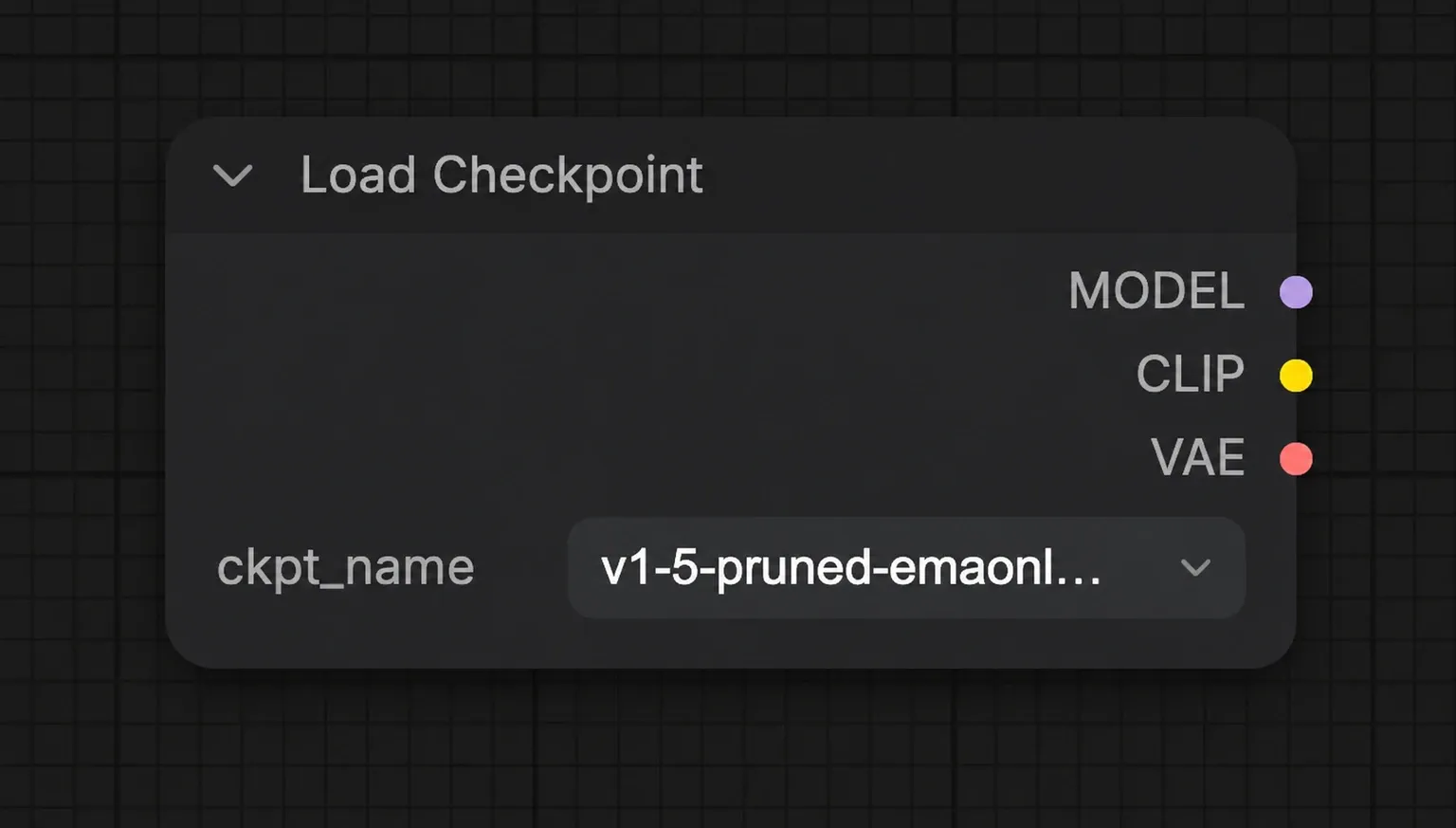
The same walkthrough connects prompt encoders and an empty latent image to KSampler, then sends the sampled latent through VAE Decode to Save Image. This is one SD 1.5 example. Other model families can require separate loaders, text encoders, or decoders; use the workflow for your chosen family.
- Name the exact model family. Check the model card and the workflow's requirements. “Stable Diffusion” alone is too broad to establish compatibility.
- Find the matching supported template. Read its required model files and node dependencies before downloading anything. ComfyUI's model guide explains how files, loaders, and workflows fit together. Support for one checkpoint doesn't establish support for every weights file.
- Check the companion files. A correctly located checkpoint still needs compatible components. The model troubleshooting guide identifies mixed architecture families as a cause of tensor-dimension errors; ControlNet models also need to match the base-model architecture.
- Locate existing compatible weights before copying them. ComfyUI can read additional model folders. Portable and manual installs use
extra_model_paths.yaml; Comfy Desktop provides model-directory settings under Storage. Back up configuration before editing it and preserve existing entries.
Sharing a model folder doesn't transfer A1111 extensions into ComfyUI nodes. Keep the old environment available while you establish the new workflow's requirements. If you need the official repository and license for your selected family, use the Stable Diffusion model download reference.
If a checkpoint is absent from the loader's list, check the configured folder and refresh the model list. If the file loads but the graph reports incompatible tensor dimensions, check the model family and companion components. Switching interfaces doesn't resolve those two different file problems by itself.
Compare speed and repeatability carefully
ComfyUI's execution design includes partial graph re-execution and model offloading. Reusing an unchanged upstream result can save work in a longer graph. A different checkpoint, resolution, precision, or memory configuration can change the result of a speed comparison.
GigaGPU's published interface comparison reports the following times on an RTX 3090, using Euler a and 30 steps. It describes A1111 with xformers enabled and ComfyUI's optimized execution graph.
| Reported task | ComfyUI | A1111 |
|---|---|---|
| SD 1.5, 512 × 512 | 1.7 s/image | 2.3 s/image |
| SDXL, 1024 × 1024 | 7.1 s/image | 9.6 s/image |
These are one hosting vendor's reported results. The page doesn't identify exact application versions, repeated-run samples, or a cold-versus-warm timing protocol. Keep the model tasks separate: these rows support a narrow observation about that reported setup, with no universal speed percentage or image-quality winner. I'd choose the workflow's required controls first and look for a benchmark that matches my hardware before paying for a faster machine.
Changing the interface alone doesn't establish a gain in image quality. Compare the actual model and complete settings before attributing a different-looking result to ComfyUI or A1111.
A saved seed is also only part of a repeatable setup. PyTorch's reproducibility guidance says results aren't guaranteed across releases, platforms, or CPU and GPU execution, even with identical seeds. Save the workflow together with the model identities, node versions, settings, and environment details. ComfyUI can save workflows as JSON and embed them in generated media, but sharing the graph doesn't bundle every required model or dependency.
Before sharing a JSON workflow or a PNG with an embedded workflow, review its prompts and input references. Keep private project details out of the copy you distribute.
Check where the workflow runs
Running the interface in a browser doesn't tell you where generation happens. A local ComfyUI installation can run a workflow on your own machine; Comfy Cloud runs workflows on hosted hardware. The official system requirements distinguish operating systems, GPU backends, and installation options. Check the exact model workflow's memory needs rather than treating the interface name as a hardware specification.
ComfyUI also has optional Partner Nodes that send API requests to external model services. They require account access and credits. Before supplying private input, identify every node that sends data outside your machine and read the relevant provider's terms. A local canvas can still contain a remote step.
The local software's price and the model's license answer different questions. Hardware, electricity, hosted compute, and optional API calls can add costs; downloaded weights retain their own license conditions. Identify your exact model family, open its matching official workflow, and check the required files before changing a setup that already works. The image guides can help with the next task once that combination is clear.