


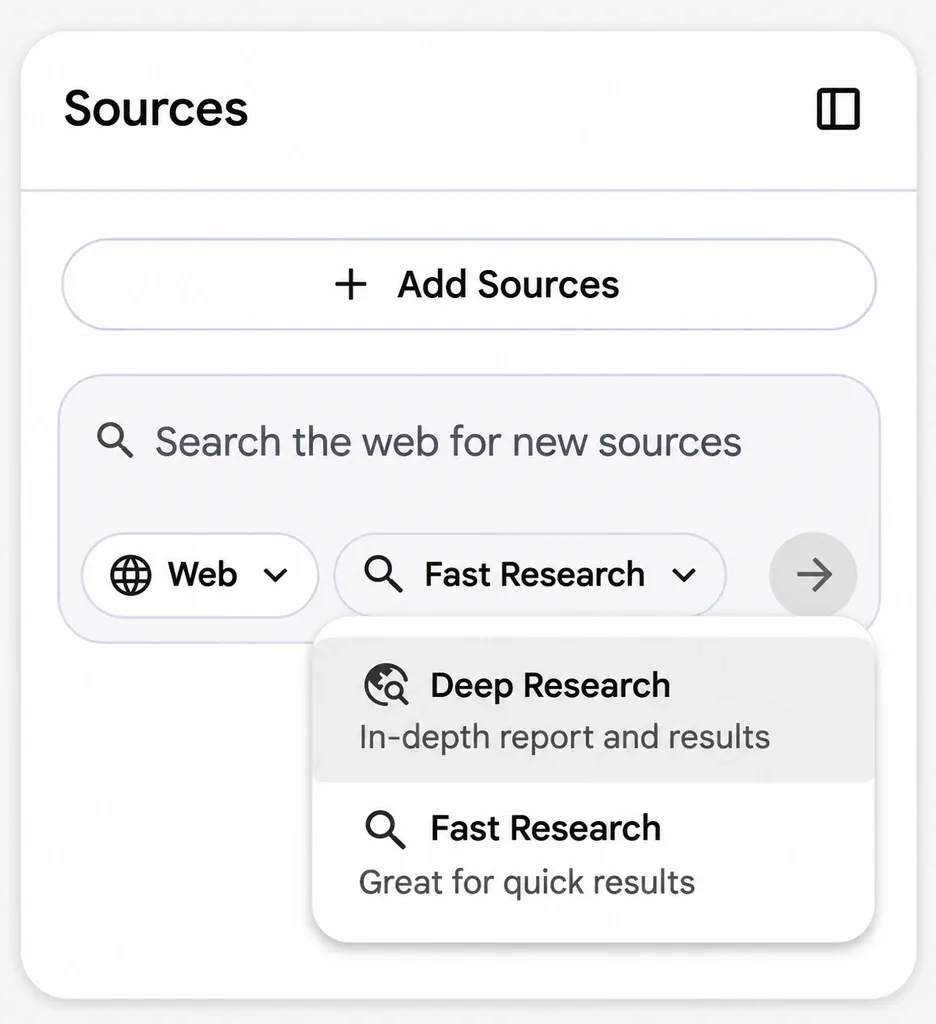
In NotebookLM's Sources panel, enter your research question, choose Web, and use Fast Research to find candidate pages. Open View to review the results, follow the links to the originals, then select the sources you want to import. Check who published each page, whether it answers your question, and whether the relevant evidence will survive the import.
I'd begin with Fast Research for a narrow question because it gives you a source list to inspect before you build a longer briefing. Choose Deep Research when you need a broader investigation and a report to review. Google's help now calls the product Gemini Notebook; the NotebookLM name still appears in searches and earlier tutorials.
Find the web search controls
- Open a notebook you own, or create a new one.
- In Sources, find the search box. Choose Web for public pages; Drive searches a different collection of files you can access.
- Choose Fast Research, enter a focused question, and start the search.
- Open View to expand the results. Each result includes a title, a description of its relevance, and a link to the full page.
- Read the originals, select or deselect candidates, and import the sources you decide to keep.
These are the controls in Google's current source-search instructions. If you're following an older tutorial, Google's original Discover sources announcement shows the earlier Discover button. Look for the source-search box and research-style selector in the newer layout.
A search result may instead describe the Discover flow in the ExtendLM extension, which starts in that extension's popup and offers curated providers. The native route above doesn't require installing that extension.
Ask for evidence that matches the decision
Give the search a question, a relevant place or product version, and the kind of evidence you need. “Public libraries” is a topic. Comparing the borrowing rules for a particular library service is a task you can check against specific policy pages.
For a constructed research example, imagine comparing Wi-Fi hotspot lending policies in your area. You could enter:
Compare Wi-Fi hotspot borrowing rules at public libraries in [city or county].
Find current official lending policies and local program evaluations or reports.
Look for eligibility, loan periods, renewal rules, and replacement charges.
Prefer original pages with a clear update or effective date.
Exclude product listings and reposted press releases.
Replace the location before searching. The request describes the source collection you want; it doesn't establish that the returned pages meet every condition. In her account of building a source list with NotebookLM, XDA writer Judy Sanhz says asking for dated sources still returned some without dates. Check those details on the page itself.
I wouldn't impose a recent-publication cutoff on every subject. For a borrowing policy, the effective version matters. For a historical question, an older original record may be exactly what you need. Choose the date condition to fit the question.
Decide what to keep before importing
Open the full-page link for each candidate. The result description explains why the page may be relevant; your next job is to locate the passage, table, or policy that answers the question. Read enough surrounding text to understand its conditions.
Use the checks in UC Berkeley Library's source-evaluation guide: authority, purpose, publication, relevance, date, and documentation. Ask who wrote the page, why it exists, what evidence it uses, and whether its scope matches your task. A familiar publisher can still have the wrong page for your question.
| Candidate in the library example | Keep, investigate, or skip |
|---|---|
| The library's current lending policy | Keep if it covers the relevant branch or system. Locate the actual eligibility, loan, and charge rules. |
| A local news announcement about the program launch | Useful for launch context. Follow its link to the current policy before using it for today's borrowing rules. |
| A vendor's hotspot sales page | Skip for borrowing rules. It answers a product question rather than the library-policy question. |
| Several sites repeating the same press release | Trace them to the original. Repetition doesn't give you independent support for a conclusion. |
| A program evaluation with methods and limitations | Keep for the evaluation question if its place, period, and sample apply. Don't substitute its findings for a current lending policy. |
These are hypothetical candidate types, not results from a completed library search. The useful distinction is the job each source can do. I'd retain a policy for the rules and an evaluation for evidence about the program, while keeping those roles separate in the notes.
When a page quotes a study or links to a policy, follow that trail. Check whether several candidates rely on the same underlying document and whether a newer version changes the answer. If an important source is inaccessible, record the gap and look for a legitimate accessible original.
Use Deep Research when the question needs a briefing
Google describes Fast Research as a quick search and Deep Research as a fuller briefing. In the Sources search box, enter the research question, choose Web and Deep Research, then start. You can continue working in the notebook while the research runs.
When it finishes, expand View and inspect both the report and the source list. Google's help says this list includes relevant sources that were cited in the report and others that weren't. Select and deselect the material you want to import. Read the original evidence for a conclusion you intend to use, even when the report presents it confidently.
Review before leaving the results: Google says exiting Deep Research with Cancel or minimize discards results that haven't been imported. The feature is currently limited to users over 18, and exceeding usage limits can produce a partial import. Compare the selected list with what arrived in Sources; if something is missing, check the source count and file limits before assuming it was added.
Check what the imported source contains
For an HTML web page, NotebookLM imports the page's text. Google's web-import rules exclude embedded images, videos, and nested pages, and say paywalled pages aren't supported. A PDF added through a URL is treated as a PDF source.
That distinction changes source selection. A library's landing page may link to the actual policy on another page; import the policy URL too if you need it. If an essential figure exists only in an image, check how NotebookLM handles images and web links and obtain a permitted source that contains the evidence.
After importing, open the source and find a passage you saw in the original. Confirm that the relevant section and its conditions are present. The auto-generated Source Guide is a summary, so continue into the source text for this check.
Then select the sources you want chat to use, uncheck unrelated ones, and ask a bounded question. For the same constructed library example:
Use only the selected sources.
For each library, extract the stated eligibility, loan period,
renewal rules, and replacement charges.
Name the source and cite the supporting passage for each rule.
If a rule or effective date is missing, say that it isn't stated.
Keep conflicting versions separate; don't choose one without evidence.
Compare the answer with the original policies using the source-checking routine for a focused summary. A well-chosen source collection makes that check possible; the generated answer still needs to preserve the source's wording and conditions.
Search again for the missing branch
If the candidates provide announcements but no current rules, narrow the next search to the named library and its lending policy. If they provide rules but no evaluation, search separately for a program report. A targeted follow-up makes the remaining gap explicit.
If you already know the authoritative page you need, use Add sources to add its URL. You can combine that known source with useful discovered pages rather than waiting for the search to suggest it.
I'd stop collecting when the sources answer the defined question with traceable evidence and the remaining gaps are clear. Add another source when it fills one of those gaps, supplies independent evidence, or reveals a meaningful disagreement. More copies of the same claim won't resolve uncertainty.
Finding a newer page also doesn't update an earlier saved output. Check the separate source-refresh behavior, replace or update the relevant source as appropriate, and generate a fresh output when the underlying evidence changes.
Find sources in the mobile app
Google's mobile-app instructions include Fast Research: enter a web query in the home prompt box, or add a source in a new or existing notebook and search there. Review the titles and descriptions, open the full pages, then select the sources to import.
Use the web interface if you need the Deep Research controls and they aren't offered in your app. Keep the same selection checks on either device. Once the collection is ready, choose the next document task from the research guides and begin with a question you can verify against the originals.