

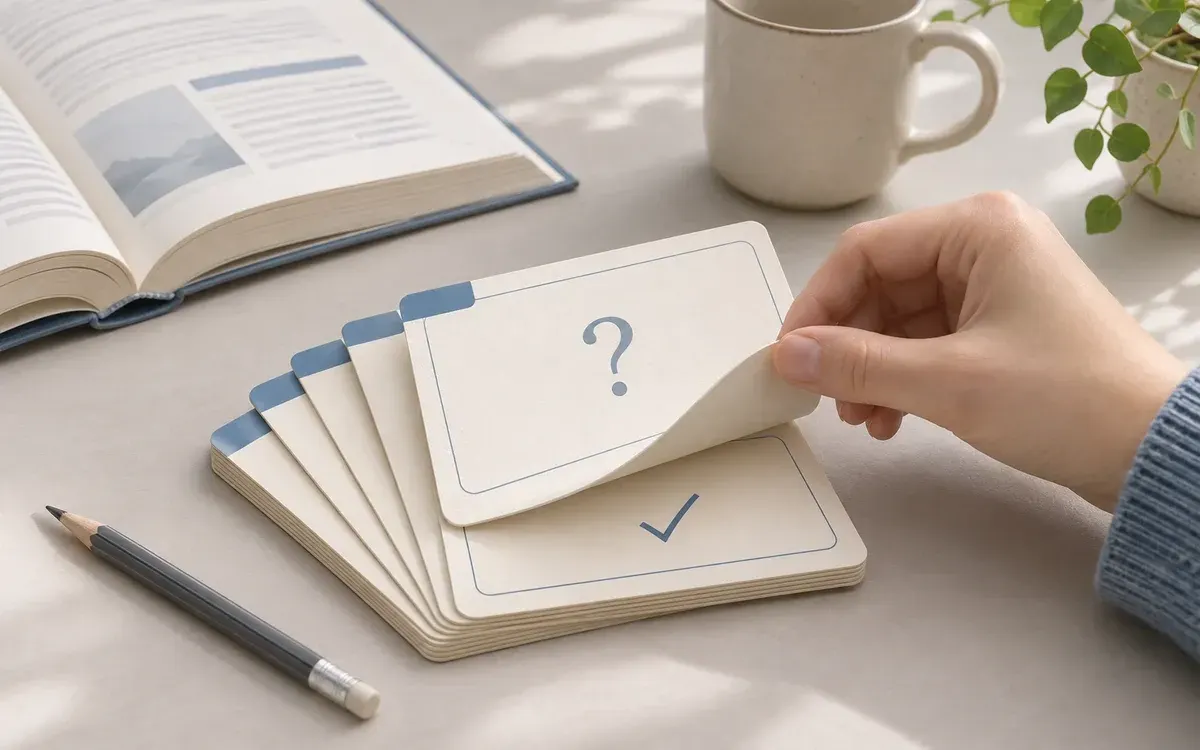
Open a notebook containing the material you want to study, then use the pencil beside Flashcards in Studio to set the focus and difficulty before generating. Attempt each question before revealing the answer. Check the answers against the sources, remove faulty cards, and use Only cards you missed for another pass through concepts you couldn't recall.
I'd start with one lesson or chapter. A smaller source set makes it easier to see whether a card belongs in your revision and whether an important concept is missing. Google's current help calls the product Gemini Notebook; the desktop web steps below follow its flashcard creation and review controls. You need edit access to generate or delete a set.
Check what the notebook can use
Upload material you have the right to use, and check your school's or organization's rules before adding private notes or someone else's work. The account and feedback privacy conditions matter before the upload, especially for shared course material.
Open the imported source and find the section you're studying. Check that definitions, symbols, diagram labels, and exceptions survived the import. A web-page import brings in the page's text, while Google files don't import footnotes or comments. The guide to imported images and source content helps when a question depends on a visual that isn't available in the notebook. For an upload that fails, check the file and source limits before changing the study prompt.
Select the relevant sources and leave unrelated material out of this set. Google's mobile feature announcement also describes temporary source selection for Studio outputs, so flashcards aren't confined to a desktop app. Use the web workflow here when you want to follow the same control layout.
Write the learning target in a sentence. For example: “Explain how evaporation and condensation differ, and identify each in a familiar situation.” This constructed example gives you something to compare with the finished deck. “Everything about water” gives you much less control over what belongs.
Customize the question and difficulty, then generate
If you can't generate, check that you have edit access to the notebook. In a school-managed account, your administrator must enable access to the service. For a usage-limit message, open Settings → Usage and follow the displayed reset information. Google's current usage guidance describes compute-based limits and an expected-usage indicator for Studio generation; an old daily flashcard quota isn't a reliable guide to your account.
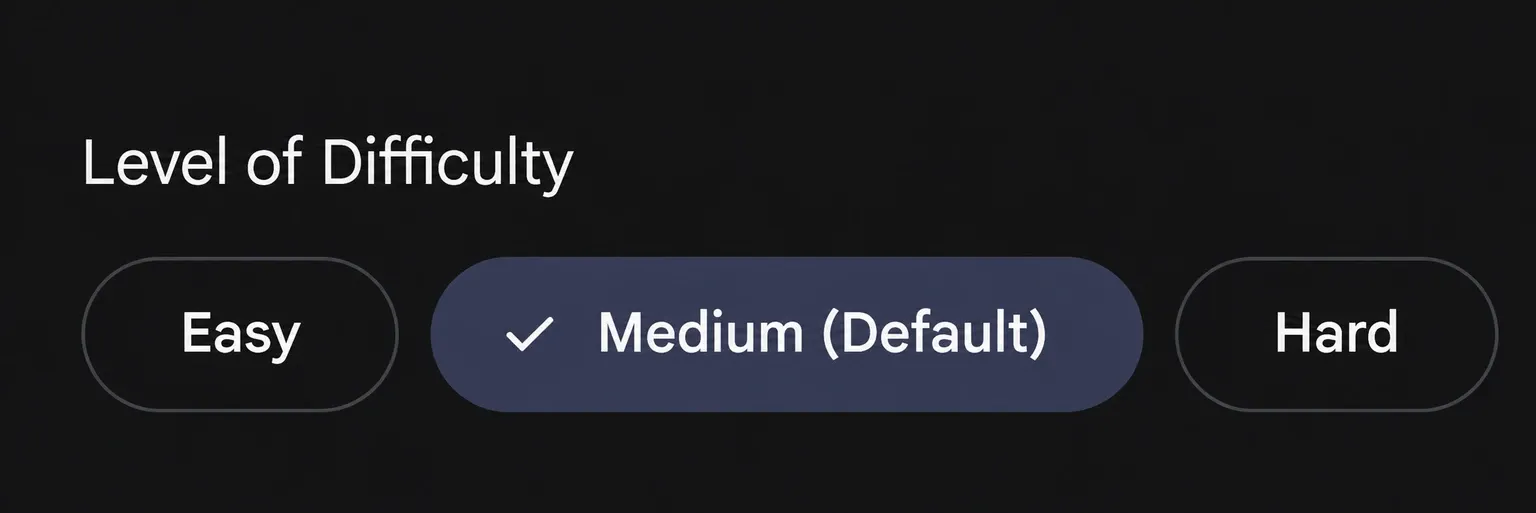
In Studio, open the pencil control for Flashcards. Set Easy, Medium, or Hard, and describe the topics and audience in the prompt field. Generate the set after those choices. Generation runs in the background.
Once the set is generated, Google's current help places Fewer, Standard, and More among the study controls. Review a manageable set before committing more material to memory. The amount settings are relative. In Mahnoor Faisal's XDA review, Standard produced 73 cards from two sources. That's one reported result, not a fixed size for Standard or a prediction for your notebook.
Choose the difficulty to match the questions you need, then make the intended task explicit. A label such as Hard doesn't tell the generator whether you want precise definitions, distinctions between similar ideas, or short applications. Here's a constructed prompt for the water-cycle lesson:
Use only the selected lesson sources.
Focus on evaporation and condensation for an introductory class.
Ask one clear question per card, with a short answer.
Include the meaning of each process, the difference between them,
and everyday examples that the sources support.
Preserve any conditions needed to make an answer correct.
Leave out unrelated water-cycle details and unsupported examples.
Review the result against that request. A prompt sets a target; it doesn't establish that every card met it. If a card asks several unrelated questions or needs a long essay to answer, narrow the focus and generate a separate set for that part of the lesson.
Audit the answer before you memorize it
Read both sides of each card you intend to keep. Check the question's meaning as carefully as the answer: could another answer also be correct, did a qualifier disappear, or does the card ask for a fact your course never covers?
Use Explain when an answer needs support or a clearer account of the concept. The Integrate This! flashcard walkthrough describes Explain opening the chat panel. In chat, keep the relevant sources selected and ask for the passage supporting the exact answer. For example:
Check this card against the selected sources.
Question: [paste the question]
Answer: [paste the answer]
Find the supporting passage and cite it in context.
Identify any missing condition, ambiguity, or unsupported detail.
If the sources don't establish the answer, say so.
Select the citation and read the passage around it. Google's chat citation instructions describe opening the quoted material in context. Compare with the original course document when a symbol, table, or qualification matters. An explanation that sounds convincing still needs that check; the PDF source-checking workflow covers a closer reading of a disputed passage.
For the constructed water-cycle example, a card saying “evaporation happens only when water boils” should prompt a source check of the word only. Keep the wording your lesson supports. Don't convert a narrower explanation into a universal rule just because the shorter answer is easier to remember.
Delete a faulty card from the deck using the card controls. For a replacement set, tighten the topic request and generate again from the correct material. If the source itself needs correcting, check the revised import first: updating a source doesn't rewrite existing Studio outputs. Regenerate affected cards rather than assuming the old answers changed.
Check the gaps between the cards
A deck can contain correct answers and still omit the main thing you're meant to learn. Compare its questions with the lesson headings, learning target, and any requirements your teacher supplied. Keep a short note of concepts that are absent or only mentioned indirectly, then request a focused set for those gaps.
Separate two problems in your notes: the card needs repair and I need another attempt. A wrong generated answer belongs in the first group even if you remembered it perfectly. A clear, supported answer you couldn't produce belongs in the second. This distinction keeps an unreliable question from becoming evidence that you misunderstood the lesson.
Attempt recall and return to missed concepts
Read the question and say or write your answer before flipping the card. Mark Got it! when you could produce the required answer; use Missed it! when you couldn't, or when you left out a condition the question needed. Recognizing the answer after revealing it isn't the same attempt.
The documented controls include previous and next arrows, full screen, shuffle, and restart. Your progress is remembered when you leave and return. At the end, review the results and choose Same cards, All cards, or Only cards you missed. Revisit the source for a missed concept before another attempt if the underlying explanation is still unclear.
I'd keep a one-line note of what caused the miss, such as “mixed up which process changes vapor to liquid.” That gives the next attempt a specific purpose. If you want a separate question set, Quizzes is another Studio option with customization, explanations, and hints. Keep the same answer audit; a result screen doesn't establish that the questions covered the whole lesson.
Download reviewed cards for another study app
You can download flashcards as a CSV file using the deck controls. Google's help warns that publisher restrictions can prevent downloading artifacts from a notebook containing a Play Books ebook. Check that download is available before planning a transfer. An extension isn't necessary for the documented native CSV download.
Open the downloaded file and inspect the questions and answers before importing them elsewhere. For an existing Anki setup, its text-file import instructions cover UTF-8 text, separator selection, field mapping, and the import preview. Match the question and answer columns to the intended fields, check punctuation and multiline answers in the preview, and exclude a plain column-heading row if one is present.
Check duplicate handling before confirming an Anki import. By default, a matching first field on the same note type can update an existing note's other fields; the import options let you choose how duplicates are handled. Don't assume a new deck choice isolates existing notes from updates. Review those options and the preview before committing the import.
Plan this as a transfer of reviewed card text. CSV availability doesn't establish that Notebook's Got it/Missed it history or any review schedule transfers with it. Before your next session, choose one missing or repeatedly missed concept and return to its source explanation. Use the research guides when the obstacle is understanding the material you imported.