

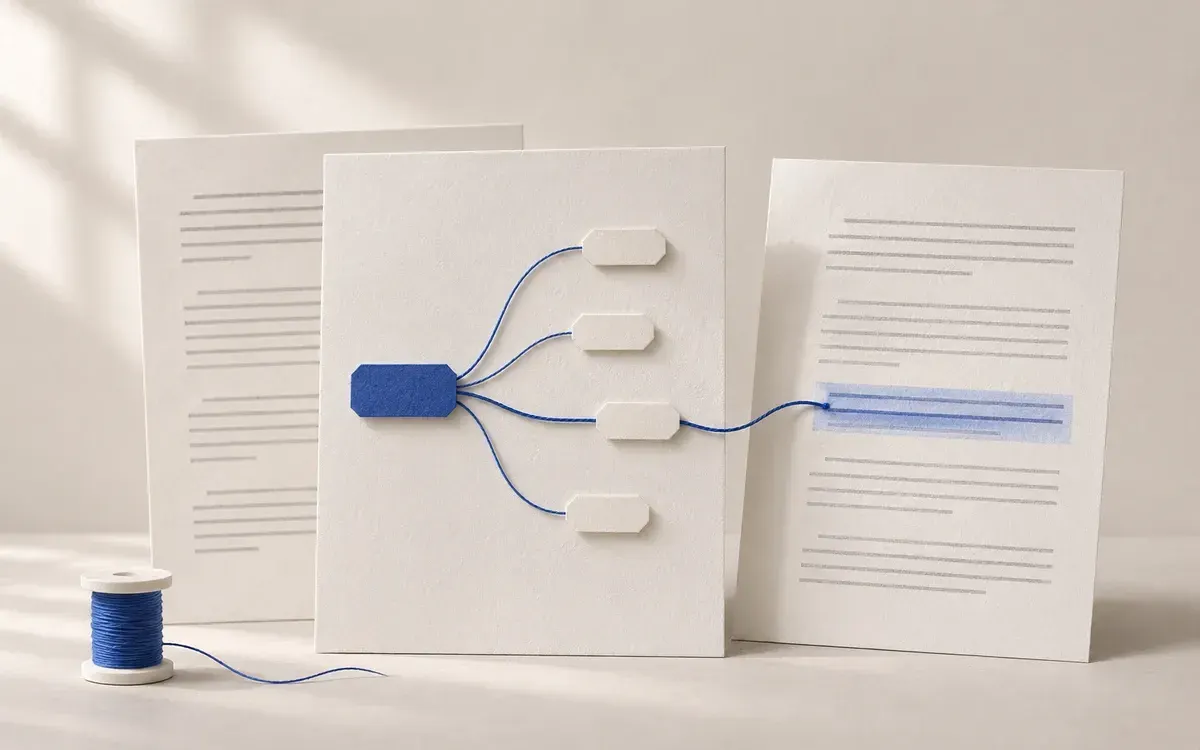
Open a NotebookLM notebook with your sources, choose Mind Map, and expand a branch that matters to your question. Select a topic label to ask about it in chat, then open the answer's citations and check the source passage. The useful result is a clearer reading route with evidence you can return to.
I'd begin with one question rather than try to understand every branch at once. Google's current help center calls the product Gemini Notebook. Use the desktop web version for this workflow: Google's Mind Maps guidance says the mobile app doesn't support the feature.
Put the right material in the notebook
Use an existing notebook whose sources belong to the same question, or create a separate one for a narrower topic. Each notebook is independent; don't expect a map in one notebook to connect documents stored only in another.
Upload material you have the right to use. Before adding confidential documents, check your organization's rules and the account-specific privacy and feedback conditions. Open the imported sources and confirm that the sections you need are present. A map can't establish what an omitted passage says.
Give the documents recognizable titles, and keep their versions or dates in a working note. If a source won't import, check the file-size, word-count, and source-count limits before shortening it. Removing the part that explains an exception can make the map easier to read and less useful.
Generate a map and find it again
In the notebook, select Mind Map. Google's documented route uses the Mind Map chip in chat; the generated map appears as a note in Studio, where you can reopen it. The Studio layout also provides a Mind Maps creation tile and supports multiple outputs of the same type.
For an overview, start with the default generation. When you need a particular angle, look for a pencil beside the Mind Map tile. XDA's account of the topic-prompt control describes a field labeled What should the topic be? If that control is available in your view, specify the question the map should organize. This changes the generation request; it doesn't manually edit an existing branch.
For example, a constructed topic request for a notebook about AI bias could be:
Focus on where bias can enter an AI system, from data collection
through deployment. Organize the map around those stages.
Keep the scope within the uploaded sources.
If you don't have that control, use a dedicated notebook containing the relevant source material. Don't assume that a request typed into ordinary chat has rewritten the map already saved in Studio.
Expand the branch, then ask about its topic
Zoom and scroll until you can read the labels. Expand a branch to reveal subtopics; collapse branches you're setting aside. Google's guidance separates expanding branches from selecting nodes to ask questions. Use the branch control to change the view and the topic label to investigate the idea in chat.

I'd keep the parent branch visible while reading a child. A label such as “deployment bias” needs the context of its parent category, and the same term may have a narrower meaning in your documents than in general discussion. The top-right view control can give the map more screen space; it doesn't add evidence.
A branch's position also needs judgment. In Craig Van Slyke's published AI-bias example, the map contained overlapping categories, including data bias and training data bias. He used the arrangement as a starting point and decided which concepts to combine. That is a useful check to repeat: do these labels describe distinct ideas in your sources, or is the hierarchy making one idea look like several?
Follow one node back to a passage
Select a topic label to ask about that subject in chat. Read the question and answer that appear before continuing: a broad explanation of a term may still leave your specific question unanswered. Narrow the follow-up and, when necessary, choose the relevant sources in the Sources panel.
This constructed follow-up asks for something you can inspect:
For the selected topic, explain the meaning used in these sources.
Identify the supporting passage and cite it. Distinguish the source's
definition from your interpretation of how it fits this branch.
If the sources don't establish that relationship, say what is missing.
Google's chat guidance explains that hovering over a citation shows the quoted text and selecting it takes you to the quote in context. Open it, read the surrounding paragraph, and compare the answer with the original document where the distinction matters. Check definitions, exceptions, and the group or situation the statement applies to.
Suppose, as a constructed example, one passage discusses bias in a training sample while another discusses how people use a deployed system. A map might place both under “Sources of Bias.” That grouping helps you find the material, but it doesn't establish that the documents use the same definition or describe the same cause. Record what each passage says before combining the ideas in your own notes.
Keep a short evidence note: branch path → question → answer worth keeping → source title and location → qualification. Use Save to note for a useful chat answer; Google says saved responses retain their formatting and clickable citations. Add your own checked qualification alongside it. For a very short source, the citation may refer to the whole document rather than an individual passage, so read the document itself.
Choose what to save or share
Save the result according to what the next reader needs. Before sending anything, check both the content visible in the map and the permissions attached to the notebook.
| What the reader needs | What to keep or send |
|---|---|
| A visual overview | Use Download in the map window. Open the file afterward and check that the useful labels and branches are readable. |
| Interactive exploration with sources | Share the notebook with appropriate access. The recipient can reopen the map from Studio and investigate the available material. |
| A conclusion you can justify later | Keep the checked answer, its citations, and your evidence note. A map image alone doesn't preserve the reasoning behind the conclusion. |
| A hierarchy to rearrange manually | Plan a separate editing step. A downloaded image isn't an editable mind-map project. |
A native download and a structured export serve different purposes. XDA's export walkthrough describes the native download as a PNG and uses a third-party extension for a structured file. Those are separate workflows. I'd use the native image when a visual reference is enough; installing an extension needs its own review of permissions and data handling.
For an interactive handoff, use Share in the notebook and choose the recipient's access. Google's sharing rules give viewers read-only access to the shared source documents and notes; editors can add or remove material and share the notebook further. A chat-view link hides materials from the default view but doesn't completely revoke a viewer's underlying access. Don't use it to conceal documents the recipient shouldn't receive.
If the notebook contains a Play Books ebook, check the restrictions before promising a download or shared view. Google's Mind Maps help warns that publisher restrictions can prevent artifact downloads, and the sharing guidance says recipients may need to buy the source ebook to view or interact with an artifact.
Repair the map at the right level
No Mind Map option in the mobile app: open the desktop web version. If creation is limited there, check Settings → Usage and the expected usage shown in Studio. Google's current usage guidance explains the account's limits and refresh conditions.
The map is too broad or misses a useful angle: refine the topic request where that control is available, or put the relevant material in a narrower notebook. Check that the missing topic exists in an imported source. A map's visible branches aren't an inventory proving that every passage was covered.
The source changed but the map didn't: updating or deleting a source doesn't change existing Studio outputs. Check the imported version using the source-refresh guidance, retain any useful map and evidence notes, then generate a fresh map from the current material. Google's help also describes deleting the old map note through its More menu to regenerate; save anything you need before deleting, then choose Mind Map again.
A branch label or relationship looks wrong: open its topic in chat and inspect the source passage before regenerating. A new arrangement can still repeat the same misunderstanding. Use the PDF source-checking workflow when you need to examine a document's claim in more depth. For another research task, return to the research guides.