

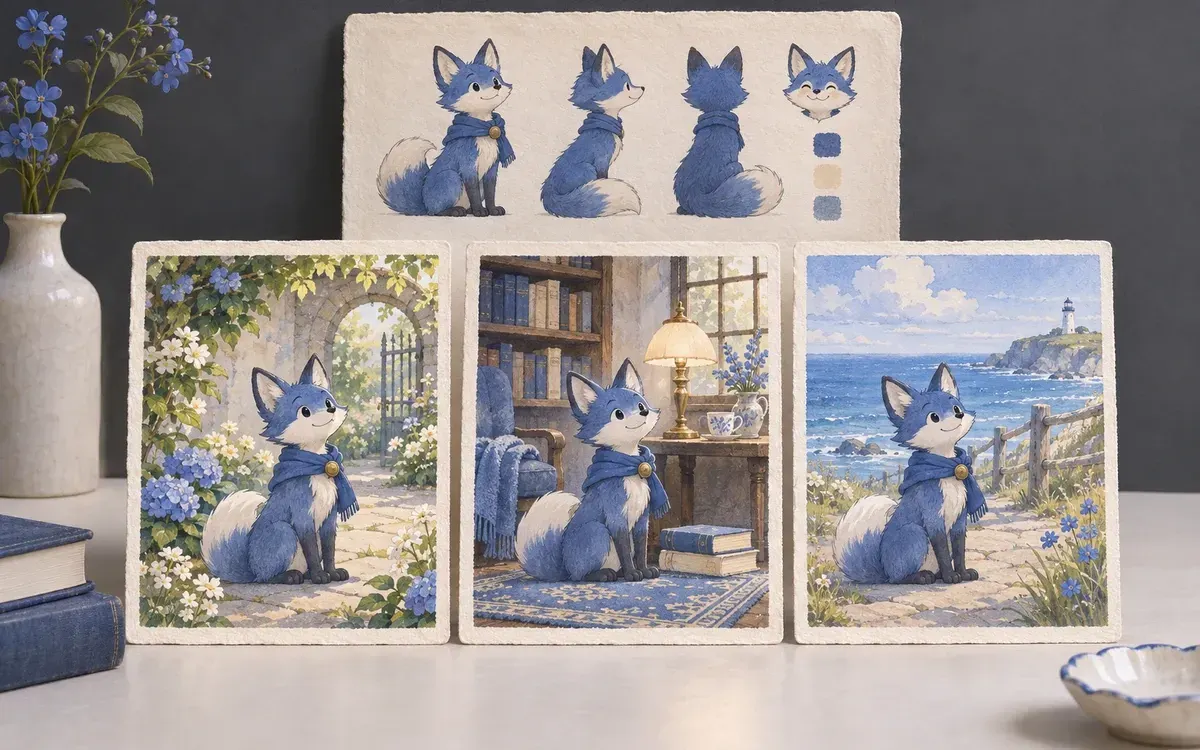
Choose one approved character design, attach the same reference images for every new scene, and compare each result with that design before keeping it. For a small illustrated series, I'd start with a reference-based workflow and a short list of fixed traits. A recognizable face alone isn't enough if the scarf, body proportions, or markings change between pages.
Approve the character before making the series
Start with a clear image of the fictional character you intend to reuse. If you don't have a design yet, draw or generate an initial character, then inspect it before making more scenes. A misplaced badge in the master becomes an ambiguous instruction for every later scene. Use artwork you own or have permission to upload.
Check visibility before uploading private material. Ideogram's account guidance says generated images on the free and legacy Basic plans are public. Choose an account and workflow with the privacy your project requires before generating a confidential design.
Keep an identity note beside the master. For a constructed storybook example, the character might be a blue fox with a cream muzzle and chest, a cream tail tip, and a teal scarf fastened by a round brass badge. Decide which of those details must stay fixed. The character can sit or run without changing its design; a planned costume change needs a different clothing rule.
Make the reference show the details your scenes require. A headshot gives you little basis for judging the shoes in a full-body scene. In Ideogram's published character test, a reference ending at the chest left trousers and shoes undefined. Adding a full-length reference, or explicitly describing the outfit, corrected those details in its small comparison. The same report notes that a generated profile reference lost the shape of a pin, so inspect new reference views before accepting them.
I'd keep a clear full-body master and add an approved close view when small facial details matter. Add a profile only if the planned scenes need it and you can verify its design. Several contradictory references give the model conflicting examples of the character you want.
A character reference provides identity. A style reference guides the medium or overall look. Ideogram distinguishes those two purposes; a style image alone doesn't preserve the same mascot. Keep the visual style stable for the first few scenes so you can judge continuity without also judging a redesign.
Attach the reference and request one scene
In Ideogram, open the Image app → Ideogram 4.5 → Reference images. It accepts one to five reference images, each a JPEG, PNG, or WebP file up to 25 MB. Ideogram's reference-image instructions recommend clear views and reusing the same images for subsequent scenes.
- Choose Ideogram 4.5 in the Image app's model selector.
- Add the approved character images in Reference images. Confirm that the intended files are attached.
- Type @ in the prompt and select the character image from the suggestions. Use the actual image pill that appears; its label may differ from the example below.
- Describe the new action and setting, with a short reminder of the traits that must stay fixed. Check the displayed credit cost before choosing Generate; reference-image generations use credits.
- Compare the result with the master before requesting the next scene. Keep using the approved references.
With references attached, Ideogram 4.5 treats the prompt as an edit instruction. Assign a purpose to each reference if you attach more than one. For example, say that both images show the same fox, with the full-body view defining its proportions and the close view defining its facial markings.
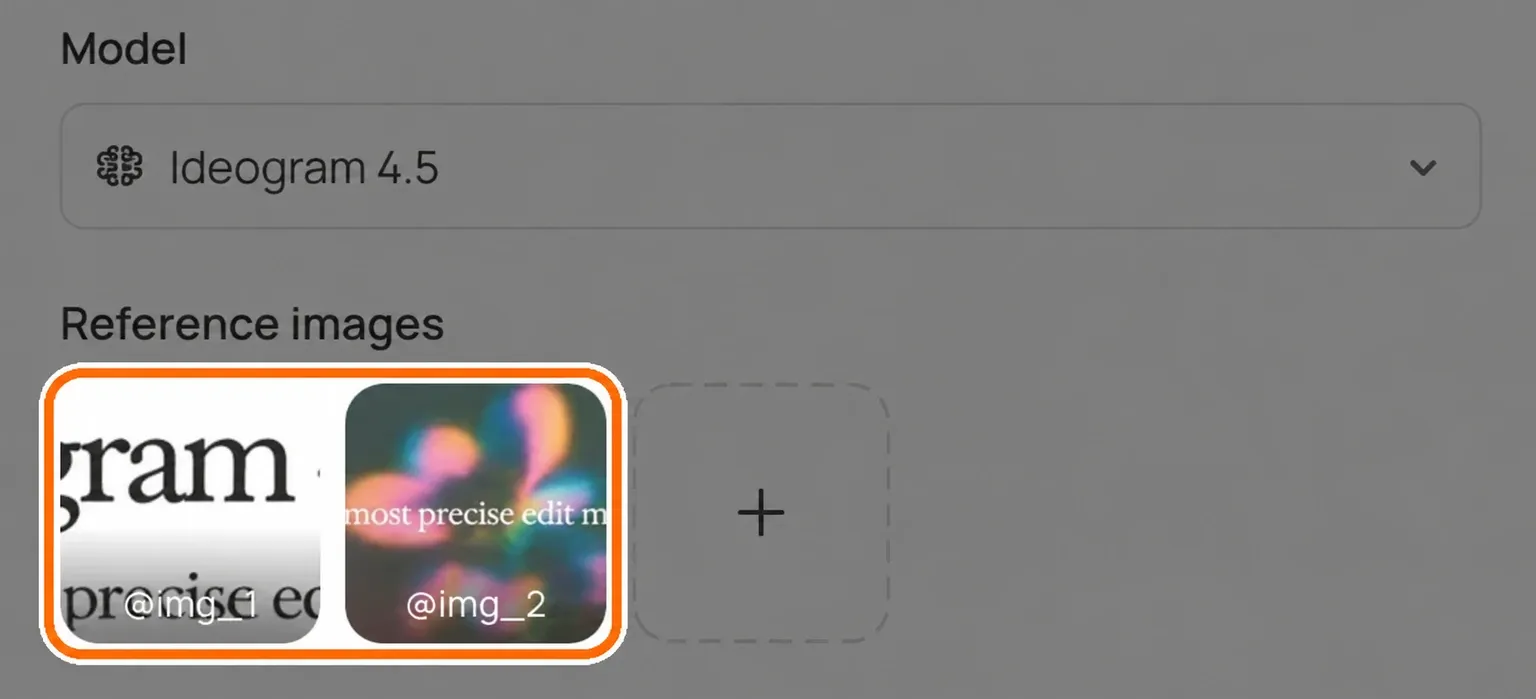
This is a constructed prompt for the fox example. Attach your own approved reference first, then replace the example tag with the selected image pill.
Place the fox from @img_1 in a new scene. The fox sits on a wooden bench in a quiet garden, holding an open picture book. Full-body view, soft daylight.

Keep the same face, ear shape, body proportions, blue fur, cream muzzle and chest, and cream tail tip. Keep the teal scarf and round brass badge unchanged. Keep the reference's illustration style.

Change the setting and pose only. Include no lettering.
For the next scene, replace the action and setting, such as walking along a seaside path. Keep the approved design description intact. The broader guide to writing a clear image prompt can help you specify the framing; here the reference supplies the character's design.
Check the attachments again after switching models. Ideogram marks excess references Not used when a model accepts fewer, and clears them when the selected model accepts none. A mentioned inactive image can block generation. Remove the unused mention or return to a compatible model instead of assuming the visible tile still guides the result.
If you're following a Midjourney tutorial, match its version before copying the controls. Omni Reference is the V7 route and accepts one image; fine details can differ. For V8.1 and V8.2, the Edit Model uses Attach to prompt with up to four reference images. Those are separate workflows from Ideogram's image tags.
Compare the character and the whole scene
Open each candidate beside the master at a comparable character size. Look at the silhouette first, then inspect the defining details. For the fox, check the relative size of the head and ears, the cream areas, and the badge's shape and position. An attractive image with the wrong design belongs outside the approved set.
Also judge the requested action and environment. The character can be consistent while its hand passes through the book or the bench has an impossible support. In Christy Tucker's worked series in Flora with Nano Banana 2, she generated nine images and retained four, revising background and scene defects along the way. That is one creator's selection from one series, rather than a general yield you should expect.
These are constructed decisions for the fox series, not measured product results.
| Mismatch | Check | Next action |
|---|---|---|
| The fox's muzzle has a different shape | Compare with the master at the same scale. | Reject that identity change and return to the approved reference. |
| The badge becomes a star | Read the identity note and inspect the round badge in the reference. | Request that specific correction, then recheck the whole character. |
| The scarf looks darker in shade | Compare its color under the scene's light and check its shape. | Accept plausible shading if the design remains clear; correct a changed garment. |
| The character matches, but the book intersects its hand | Inspect the grip and nearby edges. | Repair the interaction or choose another candidate. |
Then inspect the image at its intended page size. Small details that look correct when enlarged may disappear in a small panel. If the badge is essential for recognition, adjust the framing so readers can see it. Compare all accepted scenes together before approving the series.
Repair a specific mismatch
Return to the approved master when the character changes. Keep a good scene as an additional reference only after checking it against that master. Otherwise a changed detail can enter your reference set and make the next request ambiguous.
For a local defect, attach the scene and the approved character reference, select their actual @ pills, and name the correction. Here is a constructed request for the wrong badge:
Edit the garden scene in @img_1. Replace the star-shaped badge on the fox's scarf with the round brass badge shown in @img_2. Keep its position on the scarf.

Keep the fox's face, fur markings, body proportions, pose, book, bench, and background unchanged.
Inspect the entire result again. A request to keep the rest unchanged still needs a visual check. If the correction repeatedly changes approved parts, return to the saved good scene and try a more limited edit, or discard the candidate. Keep the earlier file so a failed correction doesn't replace it.
When an unseen detail keeps changing, define it before continuing the series. Add a checked full-body view for an outfit problem, or explicitly describe the missing garment. Avoid generating several new scenes while the identity rule remains undecided.
With two recurring characters, attach a separate reference for each and identify their roles and positions. Ideogram's character guidance warns that separate references don't guarantee separate identities. Inspect both characters for exchanged colors or accessories. For a first series, I'd approve one character's design across a few scenes before adding a second character.
Save a coherent set with its references
Open an approved image and use its Download button to choose the format and size. Ideogram's download menu offers JPEG at original size without a paid plan; PNG and WebP for ordinary images require a paid plan. Pick the original size for the initial review. Upscale options in this menu need a paid plan and spend credits. Inspect the enlarged result again.
Retain the original reference files separately. Keep the identity note and the exact prompts with the model name and settings you used. Local filenames such as fox-master-v1, garden-approved-v1, and seaside-approved-v1 make the accepted set easier to distinguish from rejected attempts.
Review the downloaded files together in story order, then inspect their actual crops in the final layout. Confirm that a cut-off tail or hidden badge doesn't undermine a design that looked consistent in the uncropped image. Save rejected candidates outside the approved folder.
If a scene needs an intentional outfit or style change, record that exception in the identity note and check that the remaining defining features still match. Keep the final set and its references together so a later addition can use the same approved design. For a different visual task, return to the Images guides.