

Upload a photo to a hosted AI editor only after its training, sharing, and deletion rules fit the image you're sending. I'd keep confidential work and identity documents out of an ordinary consumer editing session; an attractive result doesn't justify exposing the original. Intimate photos deserve the same restraint. For an acceptable photo, prepare a copy with unnecessary identifying details removed and check the controls before attaching it. Find the file-deletion control before you start.
Decide whether this photo belongs in the service
Start with the original photo, including its background. A portrait can also show a child's school badge, a delivery label, or a reflection of a private screen. Consider the people pictured and any work restrictions before choosing a tool. Permission to edit a client's picture doesn't automatically settle whether you may send that picture to an outside processor.
For a confidential client image, use the workflow approved for that project. If the approved tools can't perform the edit, stop and resolve that restriction before uploading. For a casual photo of another person, get their agreement to the upload and intended use. I wouldn't send a child's identifiable photo to an unfamiliar service just to try a trend.
Suppose you want a cleaner background for a public profile photo. A useful first question is whether a local crop already removes the distraction. If you still need AI editing, check the remaining portrait and the service's rules. A picture intended for public display can still contain information you didn't intend to share.
Check training, visibility, and retention separately
Find the actual operator and the terms for the feature you're about to use. An editor can send different operations to different processors. For example, PixGrid describes local text and layer editing, its own hosted removal tools, and external providers for generative edits. Those are the vendor's stated arrangements, not an independent security certification. The fact that an editor opens in your browser, or has a desktop app, doesn't establish where a particular AI operation runs.
- Training: Does the policy cover uploaded photos as well as prompts and outputs? Is model improvement enabled for your account, and can you opt out before sending a new photo? Check feedback exceptions too.
- Visibility: Can other users see the upload, prompt, or result? Look separately at public galleries, shared workspaces, and the channel where you submit the job. A private gallery setting doesn't answer the training question.
- Retention and deletion: How long are uploads, results, and associated records kept? Find the file-deletion control and any exceptions. Removing a visible thumbnail isn't proof that every retained copy has disappeared.
If the service doesn't answer a condition you need, don't treat the missing answer as permission. Choose an approved alternative or keep the edit local. Paying for an individual subscription also doesn't establish a no-training policy: OpenAI's consumer training rules cover Free, Plus, and Pro, while its business services have separate defaults.
Prepare the actual file you'll upload
Keep the original and make a separate upload copy using a local editing operation whose processing you understand. Remove unnecessary background before using the hosted AI feature. Asking that same service to erase a private label means sending the label first.
- Crop to the area needed for the edit. Inspect the edges and reflections for identifying details, especially readable paperwork or screens.
- If a sensitive detail must disappear, remove it completely from the copy. Don't rely on a light blur that still leaves the information recognizable. Export a flattened image rather than sending an editable document with the original layers.
- Review the exported file's information, including location. Apple explains how location coordinates can be embedded in photos and removed. Its Location switch in the Share Sheet applies to that sharing action; check the file you select for a later browser upload.
- Reopen the exported copy and inspect both the visible image and its file information. Use a neutral filename and omit unnecessary personal details from the prompt. Where the app offers selected-photo access, select only this copy.
Removing location metadata doesn't remove a street sign or a recognizable face from the picture. Cropping the background doesn't establish that metadata is gone either. Check both parts, then attach the prepared copy rather than the original beside it.
Set ChatGPT controls before attaching the photo
For an ordinary editing chat in a personal ChatGPT account, open your account menu, choose Settings > Data controls > Improve the model for everyone, turn the switch off, and select Done. Do this before starting the conversation with the photo. The signed-in setting applies across web and mobile; turning it off keeps your chat history.
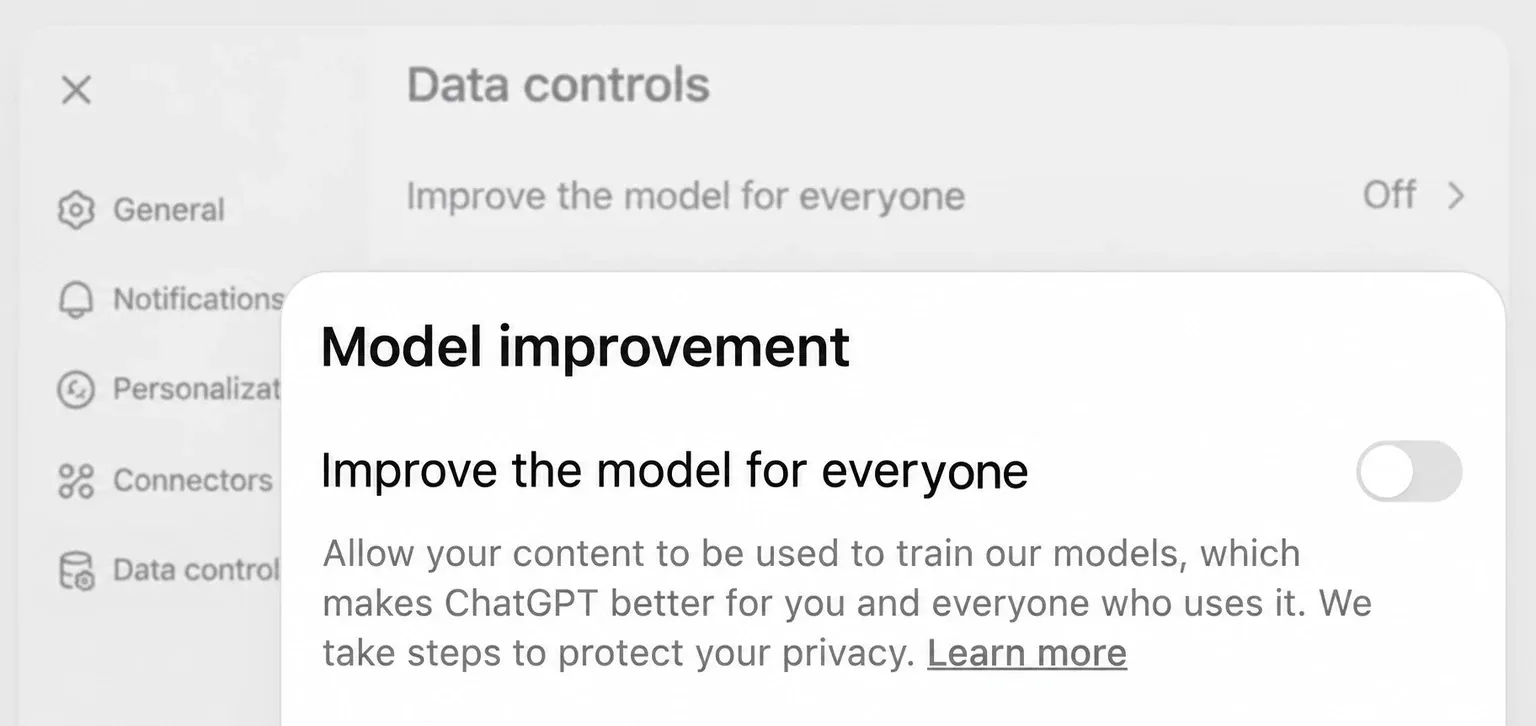
The opt-out covers new conversations; it isn't a deletion request for past uploads. If you submit thumbs-up or thumbs-down feedback in a consumer account, the associated conversation may still be used for training. Keep sensitive content out of feedback sessions. A managed workspace follows its own applicable controls and policies; don't substitute its terms for a personal account's terms.
For an occasional edit you don't want in history, I'd consider Temporary Chat after the photo passes the same upload decision. Open a new chat and choose Temporary before sending the image. While the chat remains temporary, it isn't used to improve models and doesn't create or update memories. OpenAI may keep a copy for up to 30 days for safety purposes. If you don't want existing memories or custom instructions used, choose Unpersonalized before the conversation begins.
Saving a temporary chat changes its status. It becomes a regular chat and follows your account's model-improvement and personalization settings. Eligible uploaded files may then be saved to Library or Space. If you're using a GPT with actions, data sent to an outside service follows that recipient's privacy policy, which can allow retention beyond 30 days. For a simple photo edit, avoid adding an outside action you don't need.
Check Midjourney visibility before creating
Midjourney creations are public by default, including images made in private Discord servers or direct messages with its bot. A private Discord location alone doesn't make the generated image private on Midjourney's website.
Stealth mode is available on Pro and Mega plans. For a creation you need hidden from other website users, enable Stealth before generating and use the web Create page, a bot direct message, or a private Discord server. Work made in a public Discord channel remains visible there even with Stealth enabled. Check both the mode and the submission location.
Changing the default mode affects future jobs. Existing public creations need a separate visibility change; upgrading doesn't hide them automatically. The same guide warns that trashing a creation doesn't make it private, and it may still be discoverable through Explore or its URL.
These controls describe who can see creations. They don't establish a no-training promise or a retention period for your uploaded reference photo. Resolve those source-file requirements separately before sending a private portrait. I'd choose a different workflow if the required handling of the original can't be established.
Finish the edit and remove stored copies
After the upload decision, write a specific image brief using only the context needed for the change. Before sharing the result, compare it with the original for unwanted face changes and inspect the background for identifying details that remain. Open the downloaded file too; a clean preview isn't the final file check.
Download anything you want to keep before deleting. In ChatGPT, removing a saved chat is irreversible through the app or Support. Deleted chats leave the account view immediately and are scheduled for permanent deletion within 30 days, with exceptions for content already de-identified and disassociated from you, or longer retention required for security or legal obligations. Archiving keeps the chat saved.
For a generated result in Images, delete the conversation where the image was created to remove it from My images. On the web, hover over the conversation title, open its more options menu, and choose Delete. On iOS or Android, press and hold the conversation title, then choose Delete.
When you delete a chat, check whether the confirmation offers Also delete files uploaded or created in this chat. If you leave that checkbox selected, eligible files from the chat move to Trash. If you clear it or don't see it, files saved separately in Library or Space stay there. Check those saved files and Trash after deleting the conversation. In Library, select the file and choose Delete or its trash icon. If Trash is available, open Library on the web and go to Settings > Trash. You can restore a file there for up to 30 days; your workspace's retention policy may shorten that time. To request permanent deletion, open the file's more options menu (•••), select Delete forever, then select Delete forever again to confirm. OpenAI's Library instructions distinguish these controls and their retention exceptions. A disappearance from the main list still isn't proof of immediate removal from every system.
If a regular chat saved personal information from the photo session, review Settings > Personalization > Memory too. Remove the relevant item through the memory summary or saved-memory controls available in your account, and remove the information from the original chat and any other saved sources. Deleting a chat alone doesn't necessarily delete a separate saved memory. Turning Memory off also leaves past chats intact.
For another editor, follow its documented deletion procedure for the original upload and the generated result. If the photo was also shared, review those links and audiences separately. Keep a record of any deletion request and the stated retention period; don't upload it again merely to check whether it was deleted. Return to the image guides once the photo and its handling are suitable for your next task.