

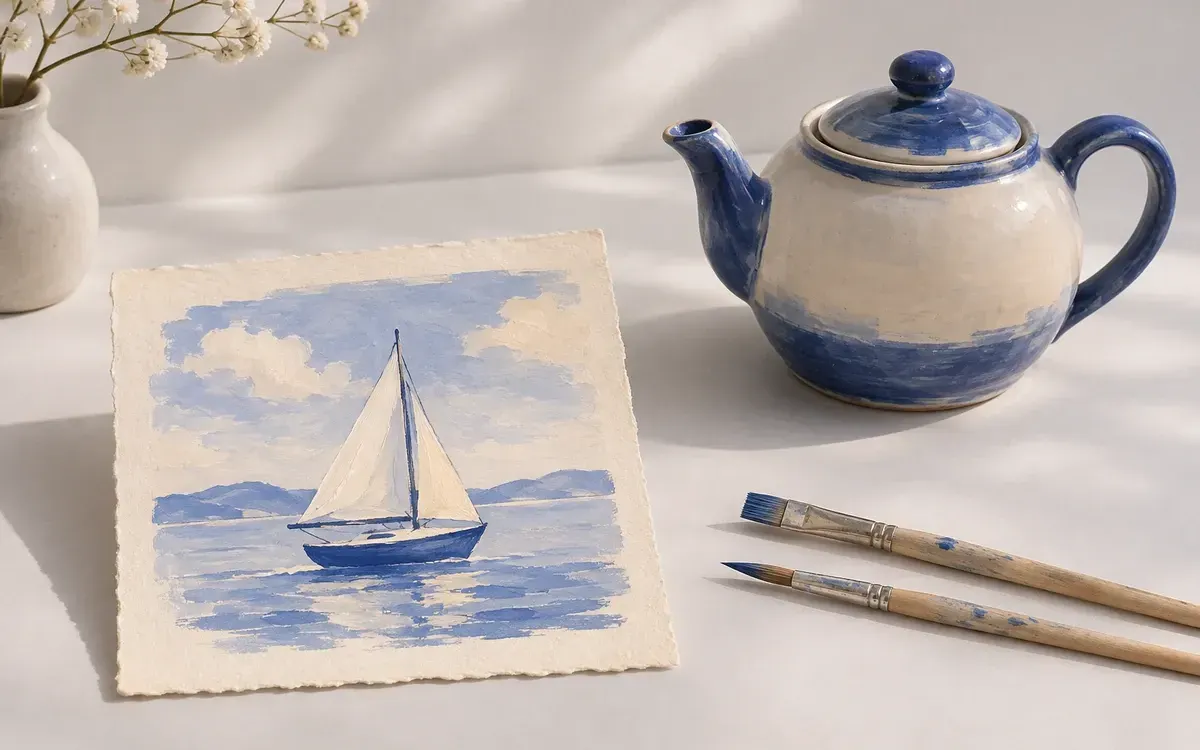
Put your image in Midjourney's Style reference slot, describe the new subject in the text prompt, and start with the default style weight of 100. This borrows the reference's visual character while you choose the new scene. I'd begin with one reference because extra images make it harder to identify the cause of an unwanted detail. Check the finished subject separately from the style: a convincing palette can still accompany the wrong object.
Choose the reference type for your task
Midjourney's Style Reference feature guides the look of a new image, including its medium and color palette. It supports model versions 6 and later, including V8.2. Use it when you want, for example, the painted texture of a boat picture in a new picture of a teapot. It isn't a control for preserving the boat's identity.
Other reference types serve different purposes. Image Prompts influence content, composition, and colors, so placing your image there introduces a broader visual reference. For keeping a particular person or object, or changing an existing picture, the Edit Model in V8.1 and V8.2 supports up to four reference images through Attach to prompt. Older tutorials may instead show Omni Reference, which belongs to V7. Choose the model and reference role before adjusting strength.
Use a reference you have permission to upload, and check visibility before creating anything private. Stealth mode is available on Pro and Mega plans; creations made in a public Discord channel remain visible there even with Stealth enabled. Don't put confidential artwork into a public workflow merely to try its style.
Put one image in the style slot
Start from Midjourney's web creation page. Keep your original reference file, and note the active model in the Imagine bar's settings. The version controls also accept --v followed by a model version at the end of a prompt. A saved model choice matters when you later try to reproduce a look.
- Open the images panel. Click the image icon in the Imagine bar, then upload your reference or select it from your uploads library. The documented image formats are PNG, GIF, WebP, JPG, and JPEG.
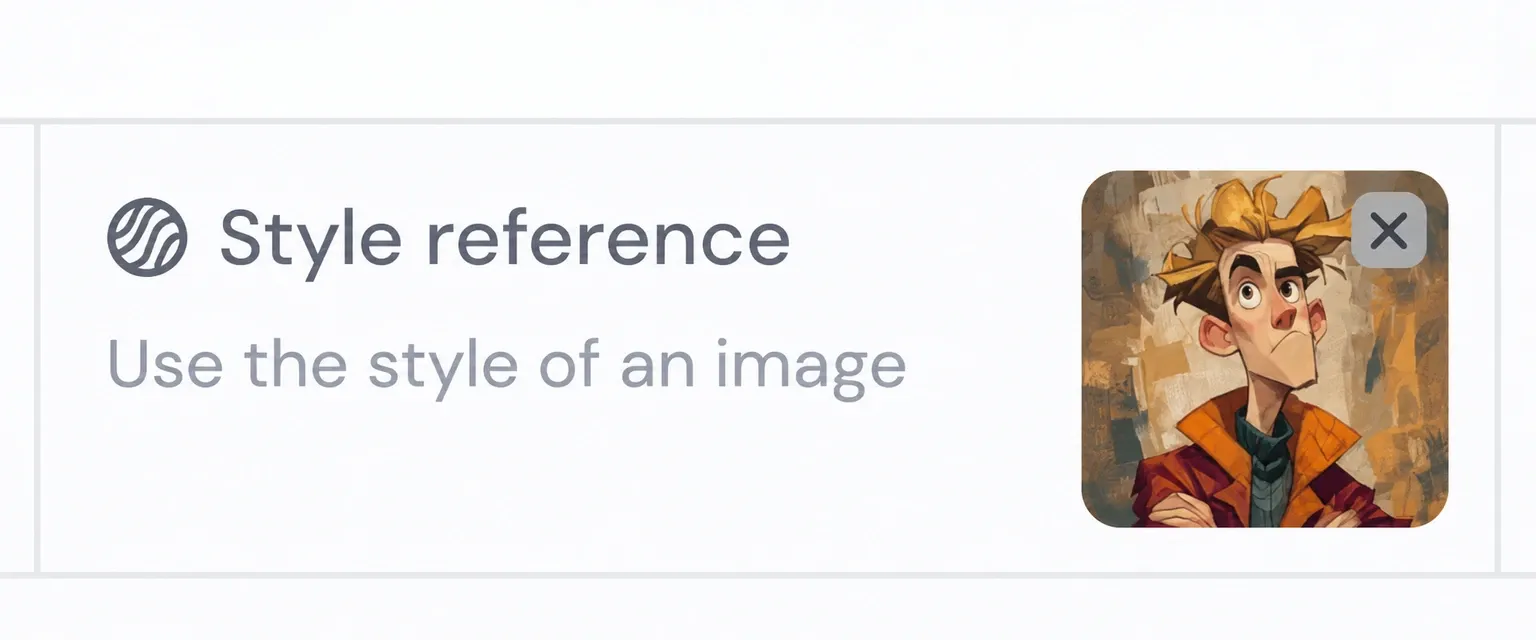
- Drag the image into Style reference. Confirm that its thumbnail appears in that section. For this first attempt, remove accidental copies from Image Prompts or Attach to prompt by hovering over the unwanted thumbnail and clicking its X.
- Describe the new picture. Include the subject and the framing you need. A Style Reference requires a text prompt; an instruction such as "make it like this but with a teapot" leaves the intended scene unclear.
- Submit one candidate prompt and inspect the results. Leave style weight at its default for the first comparison. If you plan to reuse the same reference, the lock icon pins images to the Imagine bar; check pinned images before starting another task.
For a constructed example, suppose the reference is a blue-and-cream boat painting and the new subject is a teapot. With the image in the style slot, the text could be:
a blue ceramic teapot on a plain cream background, side view, generous empty space around the teapotThe prompt names the desired content. The reference supplies visual guidance. If you add style words, choose ones that support the reference; a long list of competing media makes the intended result harder to judge. In Discord, the documented equivalent is your text prompt followed by --sref and the reference image's online URL. A local file path isn't an online image URL.
Adjust the style without losing the brief
Style weight, --sw, accepts values from 0 to 1000 and defaults to 100. It controls the reference style's influence. Image Prompt weight, --iw, belongs to a different reference type; increasing it won't repair an image placed in the wrong slot. Style weight isn't a percentage of copied content.
Compare a first candidate with the brief. If the reference overwhelms the new subject, keep the same text and reference but try --sw 50. If the style barely appears, try --sw 200 instead. Use these as trial settings and compare the results against your brief. Keep the model and other settings fixed while choosing between them, and judge the appearance rather than assuming that doubling the number doubles a visible effect.
Style can carry an unwanted motif. In Woollyfern's 2025 V6/V7 tutorial, an illustrated king reference was applied to prompts for a cat, a person, and a house. The creator reported that botanical elements traveled with the illustration style. In a later example, lowering style weight to 50 still left several illustrated results; explicitly asking for a photograph helped produce the photographic look. These examples support checking both the reference and the wording when a detail keeps returning. They don't establish a success rate for a current model.
I'd simplify the prompt before adding more controls. Name the subject clearly, remove conflicting style descriptions, and check that the reference is used only in the intended role. If a repeated motif still dominates, choose a reference with the desired medium but fewer unwanted elements. When the prompt itself is ambiguous, write a clearer image brief before spending more attempts on strength settings.
You can blend multiple reference images or combine images with numeric style codes. Leave that for a deliberate blend after the single-reference result works. Prompting Pixels' 2025 bonsai demonstration compared anime and vintage code blends with different relative weights and reported a corresponding change in their visual influence. A combined result makes sense when you want both looks; it adds another variable when you're trying to diagnose one unwanted feature.
When you do want a blend, separate the overall style strength from each reference's share. In Discord, the documented form --sref URL1::2 URL2::1 gives the first image twice the relative weight of the second. Replace both labels with actual online image URLs. The --sw setting then controls the influence of the combined style; the relative weights don't specify exact proportions of visible content.
Reuse a code with its model settings
A numeric --sref code selects a style from Midjourney's internal library. You can't obtain an exact code by uploading your own reference image. Keep using the image when that image is your source of style. To explore codes, --sref random selects a random style and resolves to a numeric code after submission; save the resolved number if you want to reuse that choice. Reruns and variations keep the resolved code, so don't mistake a reroll for a fresh random style selection.
On the Explore page, open Styles and inspect the example gallery for a code. Copy adds that code to the Imagine bar, where you can review it with your own prompt. Try Style immediately resubmits your current or latest prompt with the style applied. I'd use Copy while choosing because it lets you check the subject before starting another generation.
Model version and Style Reference version are separate settings. The parameter --v selects the image model; --sv selects a supported Style Reference interpretation. In the documented V7 style versions, images support six variants with --sv 6 as the default. V7 numeric codes and random codes support --sv 4 or --sv 6. V6 has four style variants and defaults to --sv 4.
When an old code produces a different look, find the model and style version used with the original example. For a V7 recipe made with the older code system, preserve --v 7 and --sv 4; a V7 recipe using the newer system calls for --sv 6. Matching the code alone doesn't preserve those conditions. Keep these V6/V7 instructions with their stated models rather than carrying the entire six-variant recipe into a V8 prompt.
Moodboards use a separate workflow. The Style Reference documentation excludes both --sw and --sv from Moodboards, so a Moodboard isn't a drop-in replacement when you want to compare those controls. For one borrowed look, the image reference or a saved code is the more direct starting point.
Check the new subject and save the settings
Review style and content separately. First compare the candidate with the reference for the medium and the specific visual qualities you wanted. Then put the reference aside and read your brief against the candidate. The teapot still needs the requested shape and framing even if the blue paint texture looks convincing.
- Subject: confirm that the requested object or person is present, with the features needed for the task.
- Unwanted carryover: look for recurring props, background motifs, or composition that came from the reference and don't belong in the new scene.
- Usability: check important lettering and geometry, then inspect the image in its intended crop and display size.
If an exact object must survive, return to the appropriate identity or editing workflow instead of expecting a higher style weight to preserve it. If the scene passes but the style doesn't, adjust the style reference or its weight. Keep the last acceptable candidate while making the next attempt so you can compare a specific change.
Save the downloaded image alongside its prompt and model version. Keep the original reference file or the resolved code, the style weight, and any explicit style version used. Record additional references or personalization too, if they influenced the job. Open the download in the actual page or presentation and check its final crop before approving it. For a different image task, choose the next route from the image guides.