

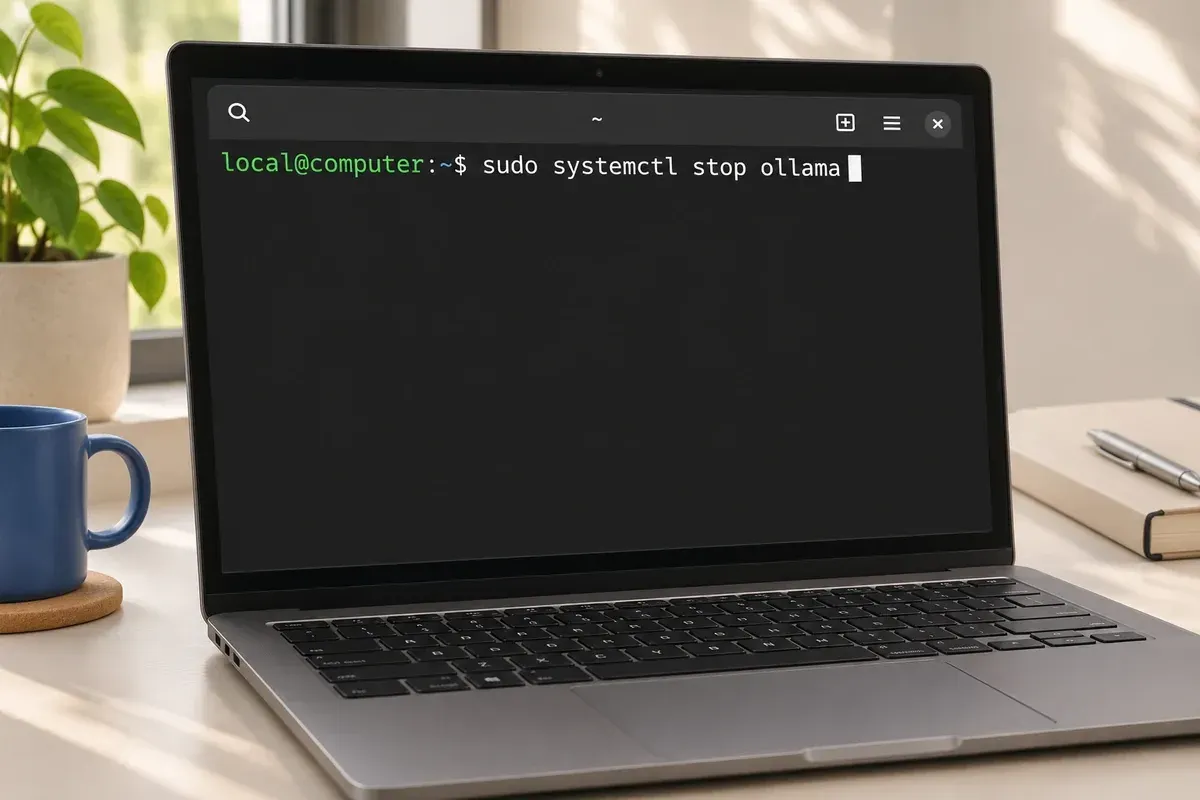
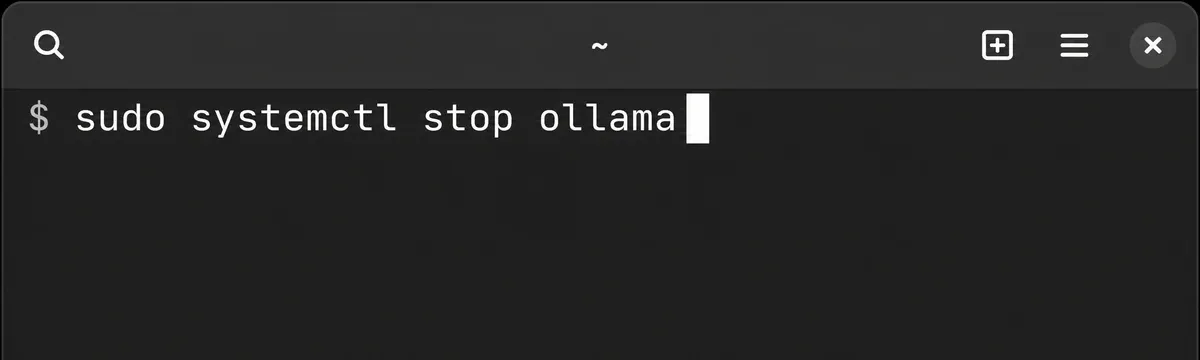
If you started ollama serve in a terminal, press Ctrl+C in that terminal to stop it. On Linux with the Ollama systemd service, use sudo systemctl stop ollama. Finish active requests first: stopping the server disconnects the applications using it.
These are two different ways of running the same server. Choose the one that started your instance. Stopping a server keeps downloaded models on disk; ollama stop MODEL instead unloads one running model while leaving the server available.
Stop a foreground ollama serve process
Return to the terminal where you ran:
ollama servePress Ctrl+C there and wait for the shell prompt to return. Ollama's server shutdown handler listens for the interrupt signal, closes the listener and unloads its model runners. This applies to the foreground server process; pressing Ctrl+C in an unrelated terminal won't stop it.
Check what the terminal was doing before using the shortcut. A terminal running ollama run is a client session, and interrupting that session is not a reliable way to stop the server behind it.
Stop the Linux systemd service
For the standard Linux service named ollama, check its state, then stop it:
sudo systemctl status ollama
sudo systemctl stop ollama
systemctl is-active ollama
The expected stopped state is inactive. The last command returns a nonzero exit status when the service is inactive; that alone doesn't mean the stop failed. Read any error from systemctl stop, particularly if the service name isn't found or your account lacks permission.
A stop affects the current session. To prevent this service from starting automatically at boot as well, run:
sudo systemctl disable ollamadisable changes boot behavior and does not replace stop. Both commands appear in Ollama's Linux service removal instructions, but stopping the service requires no deletion of the application, its user or its model directory. Don't continue into the uninstall steps just to turn the server off.
Check the address the server was using
At the default local address, try a read-only version request. In PowerShell:
Invoke-RestMethod -Uri 'http://localhost:11434/api/version' -TimeoutSec 5In macOS Terminal or a Linux shell:
curl --max-time 5 http://localhost:11434/api/versionA connection failure is expected after stopping the instance at that address. If it still returns a version, a server is still answering there. Confirm the address and how that instance was launched; don't keep stopping unrelated processes. Use your actual server base URL if you changed the host or port.
Use the direct version endpoint for this check. Some CLI commands use a server check that can launch the desktop application when the server isn't reachable. A direct HTTP request checks the listener without asking the application to start.
Only trying to release model memory?
Keep the server running and use the model stop command with an exact name from ollama ps. For example, if that list contains llama3.2:3b:
ollama stop llama3.2:3bThe next request can load that model again. For control over how long an idle model stays loaded, use the keep-alive setting. Neither operation deletes the downloaded model.
A server launched by the Windows or macOS desktop application, Docker or another process manager has a different lifecycle. The terminal and systemd commands above apply only to the two launch methods described here. Start with the controlling application or service rather than issuing a broad process-kill command.